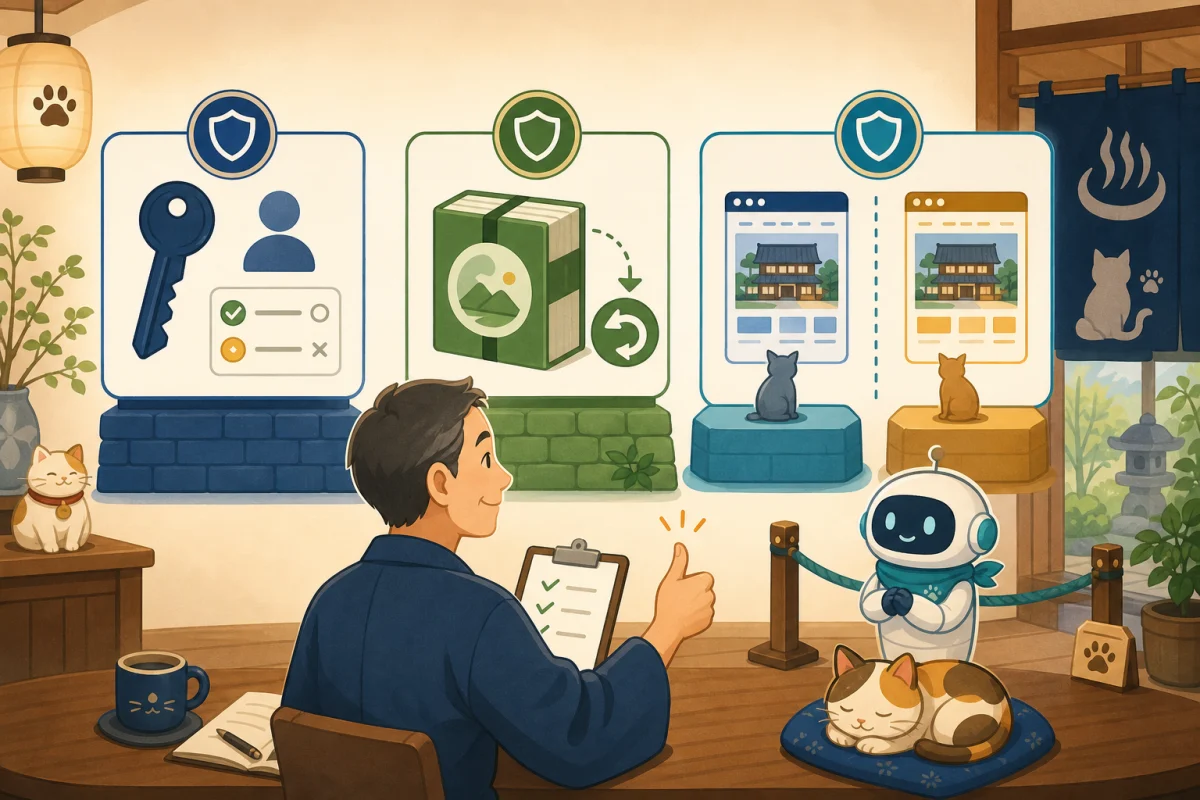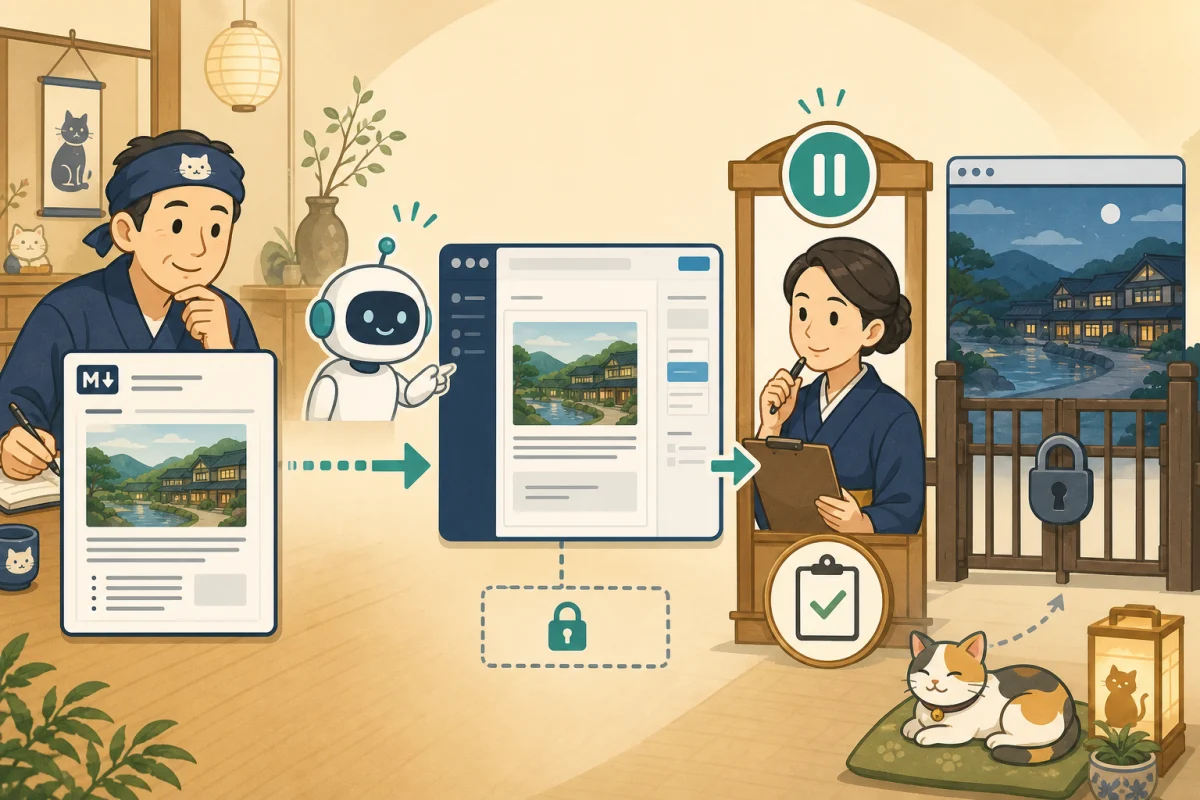
The first task to get AI to use WP-CLI is not to publish an article or update a plugin, but to check the current state of WordPress without making any changes.
By listing posts, plugins, themes, and categories, you can get a complete picture without having to open the admin screen one by one. However, even with the read command, it is possible to target the wrong site or output private articles or internal information.
In this article, we will limit the initial WP-CLI operations allowed to Codex and Claude Code to a few confirmation commands. Below is an example for a hypothetical environment. Please do not paste it directly onto your own server, but give priority to the execution method of your contractor or administrator.
- Determine the “read-only” range
- Check target before execution
- 1. Check the status of WordPress
- 2. Check the list of plugins
- 3. Check the list of themes
- 4. Check a limited list of posts
- 5. Check the category
- Why confirmation is required for “list” and “get”
- Output to avoid at first
- Read-only prompt to AI
- How to read the results
- Read audit completion check
- Summary
- Reference materials
Determine the “read-only” range
This article will check the following:
- Can WordPress be recognized and get the version?
- Name, status and version of installed plugins
- Name, status, and version of installed themes
- ID, title, slug, status, update date and time of published articles and drafts
- Category ID, name, slug, number of articles
We will also clearly state what we do not do.
- Create/update/delete articles, settings, categories, and users
- WordPress main unit, plugins, theme, translation updates
- Enabling/disabling plugins and themes
- Delete cache, run cron, search and replace
- PHP code, interactive shell, running database commands
- Bulk display of setting values, authentication information, post body, and custom fields
“Just looking into it” is ambiguous. Decide what to check and what items are allowed to be displayed.
Check target before execution
Before running WP-CLI, the administrator checks at least the following:
- Is it a production or test environment?
- WordPress location and target URL
- OS user running WP-CLI
- Allowed wrappers or execution methods
- Results storage location and sharing range
WP-CLI has global arguments to specify targets, such as --path and --url.Rather than being freely rewritten by AI, it is fixed by the administrator’s wrapper and settings. If you have not yet prepared, please check Preparations before passing WP-CLI to AI first.
1. Check the status of WordPress
First, check the WordPress version and whether the target path is recognized as WordPress.
wp core version
wp core is-installed
wp core version displays the version. wp core is-installed returns exit code 0 if WordPress is installed. The latter may not display anything when it is successful, so instead of assuming that it failed because it is blank, check the exit code as well.
If you get an error here, you won’t have to guess and hunt elsewhere or reinstall WordPress. Confirm the target path, execution user, and contract procedure with the administrator.
2. Check the list of plugins
wp plugin list \
  --fields=name,status,version,update,auto_update \
  --format=table
The main items that can be checked are as follows.
name: Plugin identification namestatus: Status of enabled, disabled, etc.version: Current versionupdate: Presence of update candidatesauto_update: Automatic update status
list is an operation that retrieves a list, and is different from update, which performs an update. Even if update candidates are displayed, they will not be updated all at once. Plugins related to reservations, inquiries, payments, and caching should be handled as separate tasks after checking the extent of their impact and how to restore them.
The list includes plugin names from which you can infer the site configuration. Do not post it directly on SNS or public chat, but only share it with maintenance personnel.
3. Check the list of themes
wp theme list \
  --fields=name,status,version,update,auto_update \
  --format=table
You can check currently active themes, inactive themes, versions, and update suggestions. If you are using a child theme, you may need both a valid child theme and parent theme. Please do not delete it because you think it is invalid and unnecessary.
Enabling, updating, or deleting a theme affects the entire display. List confirmation and change operations are not included in the same request.
4. Check a limited list of posts
The article list limits the post status, number, and items to be displayed.
wp post list \
  --post_type=post \
  --post_status=publish,draft \
  --posts_per_page=20 \
  --orderby=modified \
  --order=DESC \
  --fields=ID,post_title,post_name,post_status,post_modified \
  --format=table
In this example, only 20 published articles and drafts will be displayed in descending order of update date and time.
ID: Number used to limit targets to one in the futurepost_title: Article titlepost_name: slug used in URLpost_status: Publish, draft, etc. statuspost_modified: Update date and time on WordPress
The main text and excerpts are not included in the list to make the output larger and to avoid unintentionally sharing non-public information. Sites that have their own post types that store reservation information do not use broad specifications like post_type=any.
Check only one item in detail
Once you know the target post ID, read only the necessary items.
wp post get 123 \
  --fields=ID,post_title,post_name,post_status,post_modified \
  --format=json
ID is an example. If you select only by title search, you may mix up articles with the same name, so after confirmation, the post ID is fixed.
5. Check the category
wp term list category \
  --fields=term_id,name,slug,count \
  --format=table
You can check the category ID, name, slug, and number of articles. This will help you find categories with similar names, categories with 0 articles, and variations in notation.
Just because the number of articles is 0 does not mean that they can be deleted. Since there may be links from menus, fixed pages, reservation information, etc., we will organize this as a separate audit.
Why confirmation is required for “list” and “get”
The commands you choose to read are not intended to change anything in WordPress. However, the following points should be noted:
- Theme and plugin processing may move when WordPress loads.
- Additional packages and plugins can register their own WP-CLI commands
- Errors and debug output may include internal paths
- The list may include private articles, user names, and site structure.
- External communications and cached information may be referenced when checking update candidates.
Don’t assume that a command is safe just by its name; check the behavior in a test environment and fix the permitted commands, arguments, and output items to the Restricted Wrapper.
Output to avoid at first
The following information will not be listed until you confirm the need and scope of sharing.
- Setting values and authentication related information that can be obtained with
wp config listetc. - List of user email addresses, login names, and permissions
- Draft, private page, inquiry body
- Full output of post meta, options, and database
- Absolute path inside the server, connection destination, environment variables
- Full text of debug logs and error logs
Even if you do not display it in the AI’s answer, it may remain in the work log or temporary file. Narrow down the results to only the necessary items, and decide with the administrator what to do with temporary data that is no longer needed.
Read-only prompt to AI
Perform a read-only audit of this WordPress status using WP-CLI.

Confirmation to allow:
- WordPress version and installation status
- Plugin name, status, version, update candidates
- Theme name, status, version, update candidates
- ID, title, slug, status, update date and time of published articles and drafts (latest 20)
- Category ID, name, slug, number of articles

Prohibited items:
- Create, update, delete, enable, disable, install
- Cache deletion, cron, DB, PHP, search and replace
- Display setting values, user information, post text, and meta information
- Change target path, URL, and execution user

Please indicate the operation name and output items you plan to perform before execution.
If there is an error or target mismatch, please stop without performing any additional operations.
Results are divided into confirmed, cautionary, and unconfirmed items.
Do not display confidential information or internal passes.
In environments where execution paths are not restricted, this sentence alone cannot guarantee security. Combined by an administrator with a technical allow list.
How to read the results
The results of the reading audit are not immediately converted into change orders, but are divided into the following three categories.
Confirmed
This fact was confirmed directly from the executed command and output. The scope of confirmation is also included, such as “Only one valid theme” and “Check the latest 20 published articles.”
Points to note
These are items to consider if there are update candidates, similar categories, or old themes remaining. Do not conclude that it is a problem, but indicate that an impact investigation is required.
unconfirmed
There are many things that cannot be determined from this list alone, such as the operation of the reservation form, backup restoration, and the quality of all articles. Don’t confuse “didn’t appear” with “doesn’t exist”.
Read audit completion check
- Confirmed the distinction between target site and production/test.
- Used only authorized wrappers
- No modification operations are being performed.
- Limit the output items and number to the necessary range
- Checked WordPress, plugins, themes, posts, and categories.
- Checked the exit code and presence of errors.
- Confidential information, personal information, and text are not displayed in the answer.
- Confirmed, points to note, and unconfirmed were reported separately.
- Confirmed that there are no unintended updates before and after execution
Only after this is completed does the person choose the next task. If you want to proceed to a new article, please check the procedure for checking for duplicates and stopping drafts in How to make AI register only one draft of a WordPress article.
Summary
When working with WP-CLI for the first time, it is important to keep the target and output narrow rather than gathering a lot of information. Checks the WordPress status, plugins, themes, latest posts, and categories with a small number of list/get operations, and does not display setting values, text, or user information.
Confirmation results will not be automatically updated, but humans will judge important points and unconfirmed items. If you have not prepared yet, return to Check privileges, backup, and test environment, and narrow down the execution path using Restricted wrapper.The list of articles is summarized in Web operation guide for the host.
Reference materials
- WordPress Developer Resources:wp post list
- WordPress Developer Resources:wp post get
- WordPress Developer Resources:wp plugin list
- WordPress Developer Resources:wp theme list
- WordPress Developer Resources:wp term list
Note: Available commands and behavior vary depending on WP-CLI, WordPress, additional packages, themes, plugins, and server configuration. Prioritize procedures for contractors and administrators.