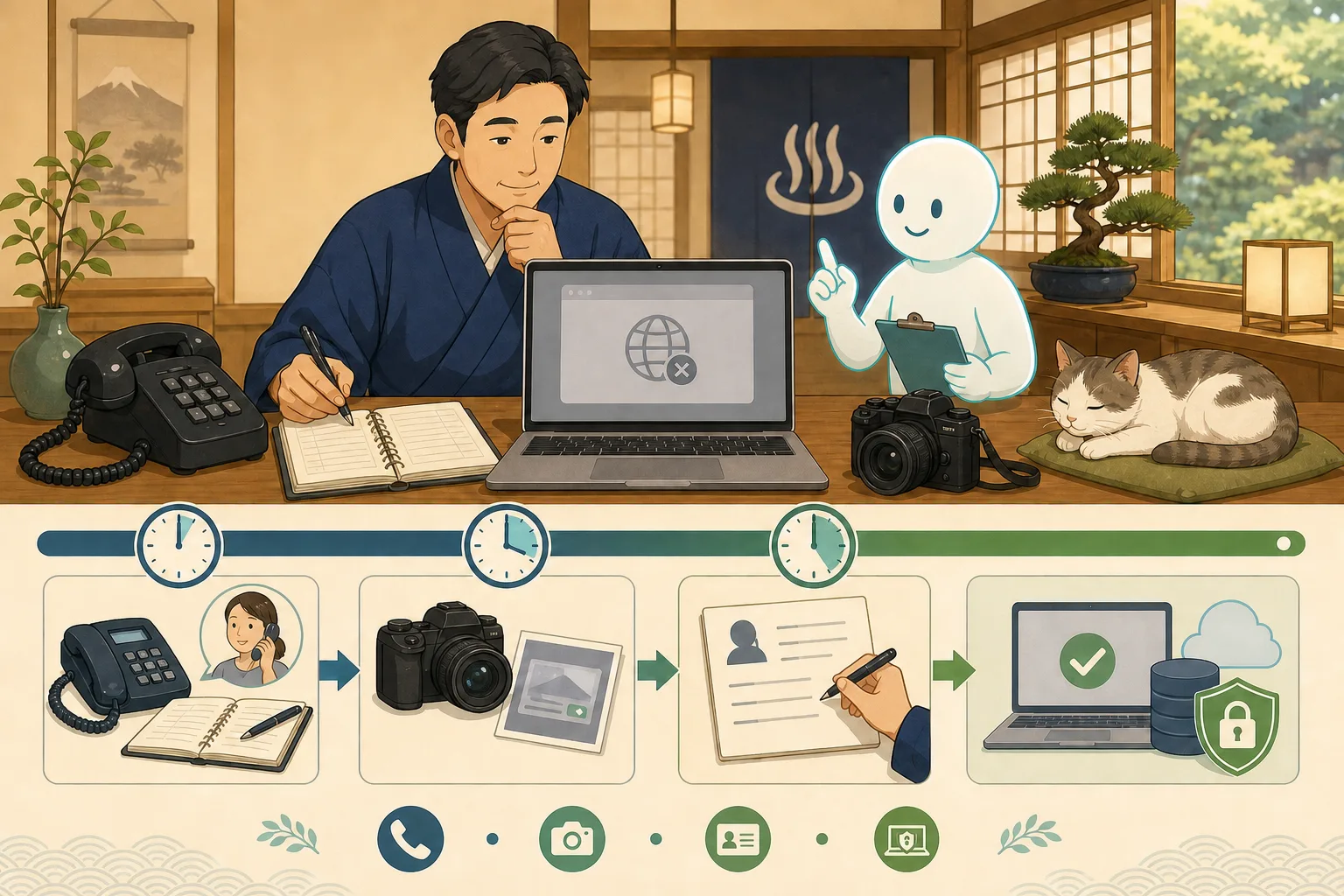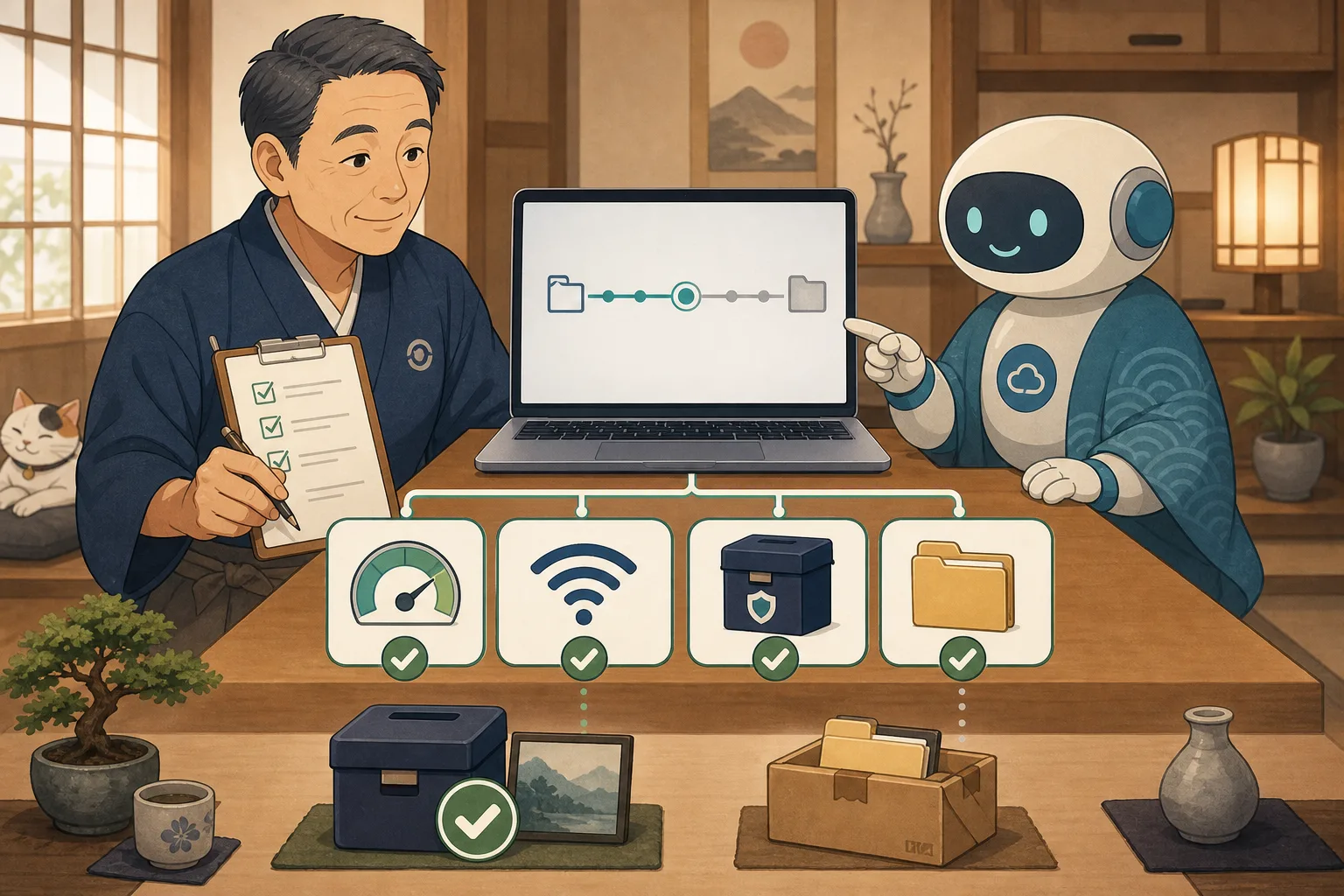
I started a backup before updating WordPress, but the progress display stops, I receive a failure email, and I can’t find the file in the save destination. If you rerun it many times in this state, it may use more server space or result in more incomplete files.
What matters is not changing the settings immediately after seeing the error. First, we check where the process stopped, what remains, and when the last successful backup occurred.
This article explains how even non-IT-savvy hosts can safely sort out the situation, using Codex and Claude Code to aid in their investigation.
- Conclusion: Check the “stopped place” and “generation to return to” before restarting
- Backup consists of multiple steps
- Common cause candidates
- What the host checks first
- Ask the AI to “read only” first
- Do not treat incomplete files as finished products
- Notes on checking for insufficient capacity
- If it stops due to communication/time restrictions
- Warning about files that keep updating
- Request text to AI that can be used with copy and paste
- Changes you can continue with and changes you should stop doing
- Confirmation checklist for the host
- Official information referenced
- Summary
Conclusion: Check the “stopped place” and “generation to return to” before restarting
The first response is in the following order:
- Temporarily stop re-executing the backup
- Record the date and time of the error and the process.
- Check if the live site is displayed correctly
- Check if any incomplete files remain
- Check the most recent successful backup
- Read and investigate capacity, permissions, communication, and time limits.
- Try only one solution that matches the cause
- Check integrity and recoverability after success
Do not proceed with updating WordPress, themes, plugins, or PHP if backup has failed. This is because the return path in case the update fails has not been confirmed.
Backup consists of multiple steps
Even if you say “backup has stopped”, it does not stop at just one place.
Check target
↓
Export database
↓
Collect images, themes, plugins, etc.
↓
Compress or encrypt
↓
Transfer to another storage location
↓
Inspect for damage
↓
Organize the older generation
Even if the database export has completed, the transfer may stop. Even if there is a file in the storage location, it does not necessarily mean it is a finished product before inspection. Do not assume that the presence of a file name means success.
Common cause candidates
| Possible causes | Clues found | First safe check |
|---|---|---|
| Insufficient space | Writing error, sudden stop midway | Read free space on server and storage |
| Write permissions | Unable to create save destination | Read owner/permissions of target folder |
| Execution time/memory | Stops after a certain amount of time, 504, etc. | Check the contract restrictions and the corresponding time in the log |
| Communication disconnected | Stops when transferring to external storage | Check connection result, retry, and storage destination service status |
| Changes in files | Warning occurs during compression | Check for continuously updated objects such as cache and logs |
| Huge files/DB | Stops at the same target every time | Lists targets with large capacity |
| Storage destination authentication | Expiry, authentication error | Check connection status on official management screen |
| Simultaneous execution | Multiple processes overlap | Check schedule and running jobs |
This table does not conclusively determine the cause. For example, even if the transfer is stopped during transfer, there are multiple possibilities, including not only the communication but also the reading of the transfer source, storage capacity, and authentication deadline.
What the host checks first
Is the production site working?
- Top page opens
- Reservation button is displayed
- You can check how to contact us.
- Enter the WordPress admin screen as usual
If the site itself is also down, it is not just a backup problem. Secure a reservation route and contact the rental server company or maintenance personnel.
Keep a record of your failures
- Execution start/stop date and time
- Manual execution or automatic execution?
- Short error message displayed on screen
- How far did the process seem to have progressed?
- Last changed settings and plugins
- Last successful date and time
Screenshots may include the management screen URL, user name, storage account, file path, and authentication information. Turn it face down before sharing.
Ask the AI to “read only” first
If you simply ask the AI to “fix your backup,” it may immediately suggest things like deleting old files, changing permissions, or increasing timeout values. First, limit the scope of your investigation.
The following items can be confirmed in the reading survey.
- Free space on server and storage
- Backup file date/time/size/status
- Presence of incomplete files
- Presence of recent verified backup
- Error type near execution time
- Start/end status of backup process
- Another process that ran at the same time
- Size of target data
- Contract service limitations and official information
There is no need to pass the entire log to the AI.Use only the necessary parts from around the time of occurrence, excluding confidential information.
Do not treat incomplete files as finished products
Partially created files may be marked with .part, .tmp, etc. However, the name may vary depending on the backup product or script.
Even if you find an incomplete file, it will not be deleted immediately.
- Check if the process being executed has really finished
- Check the official documentation to see if the product is a file used for restarting.
- Record only file location, date, time, and size
- Check if the latest completed generation remains separately.
- If deletion is necessary, clearly indicate the target and have someone approve it.
Do not allow the AI to command the summary deletion of large folders or bulk deletion with ambiguous names.
Notes on checking for insufficient capacity
Backup uses free space not only to read the original data, but also to create and compress temporary files. Even if there is space in the storage location, there may be a shortage of servers to process the data.
Even if you know that the storage capacity is low, the AI will not automatically delete old images, databases, and logs. I will list the following separately.
- WordPress upload image
- Completed generation of backup
- Incomplete temporary file
- Cash
- Log
- Data used by other services on the server
Determine which items can be deleted by checking the role, preservation obligation, and impact on recovery. Especially if you delete a completed backup first, you may lose your only way back.
If it stops due to communication/time restrictions
Transferring to external storage and processing large databases takes time. On the other hand, there are cases where the screen is silent but processing continues behind the scenes.
Verify the following:
- Is the process still running?
- Time when the log was last updated
- Has the transferred size changed?
- Is there an automatic retry mechanism?
- Rental server execution time and memory limitations
- Failure information of external storage destination
If you increase the execution time or memory limit without any reason, the entire server may become heavy. For rental servers, we check the recommended settings of the contract partner, and for VPS, maintenance personnel check the resource status and impact.
Warning about files that keep updating
Access logs, caches, sessions, temporary files, etc. may change during backup. As a result, you may receive a “File changed while reading” warning.
Whether you can ignore this warning depends on the target.
- Can the cache be regenerated?
- Is there anything necessary for restoration, such as article images or settings?
- Was the database exported in a consistent way?
- Is it announced as exempt in the product’s official documentation?
Don’t let AI judge based on file name alone, check role and necessity during restoration.
Request text to AI that can be used with copy and paste
Organize cause candidates without changing
WordPress backup stopped midway.
Please do not rerun, delete, change permissions, or change settings yet.

Date and time of occurrence: [Date and time]
Process that appears to have stopped: [Process]
Error displayed: [Short sentence excluding confidential information]

Read only, free space, incomplete files, latest successful generation,
Please make a plan to check the execution status and error type at the relevant time.
Please report facts, speculation, and unconfirmed matters separately.
Please do not display confidential information or full logs.
Determine whether to rerun
The following are the findings of the backup failure:
[Confirmed facts]

Do not run it yet.
Conditions for re-execution, conditions for canceling, required free space,
Please organize the handling of incomplete files and inspection after success.
If you need to delete or change settings, indicate the target and impact one by one.
Please separate it as an item that requires my approval.
Create a report to send to the maintenance company
Regarding the backup failure, please contact the rental server company or maintenance personnel.
Please create an inquiry to send.

Occurrence date and time, reproduction status, stop process, short error, last successful date and time,
Please include any read verifications that have been performed.
Do not include passwords, private keys, internal passes, or customer information.
Please also state that you have not made any unauthorized changes here.
Changes you can continue with and changes you should stop doing
Even if backups continue to fail, not all operations are of equal risk.
| Work | Judgment guideline |
|---|---|
| Correct typos and add new articles | If there is a recent verified generation and changes can be easily reverted, make individual decisions |
| Reversible display settings | Record the value before change and make individual decisions if the impact is limited |
| WordPress, theme, and plugin updates | As a general rule, we will stop until we confirm a successful backup |
| PHP/Database update | Stop |
| DB migration/batch replacement | Stop |
| Mass deletion/capacity reduction | Stop and check target and restoreability |
In addition to having a recent backup, we also consider the results of damage inspection and Restore Rehearsal.
Confirmation checklist for the host
- [ ] Do not start the same failure process multiple times.
- [ ] The production site and reservation line are working
- [ ] The date and time of occurrence and stop process were recorded.
- [ ] Not counting incomplete files as finished products
- [ ] Checked the most recent verified backup
- [ ] We investigated capacity, authority, communication, and time restrictions separately.
- [ ] Removed personal information and authentication information from logs
- [ ] Deletion and permission changes now have to wait for someone’s approval.
- [ ] Only one item was changed for the cause.
- [ ] Verified integrity after success
The contents of the backup and the basic method of backup are explained in Backup and restore before WordPress update.Please also refer to Restore Rehearsal with AI for information on whether a successful backup can actually be restored, and Introduction to WordPress Updates for information on updating when a backup fails.
Official information referenced
- WordPress official: Backup overview
- WordPress official: Database backup and restore
- WordPress official: Notes before changing server settings
- WordPress official: Test in verification environment
Summary
When backup stops, do not rush to rerun or change settings; instead, check the stopped process, incomplete files, and the last successful generation. Then, we will separate out the capacity, permissions, communication, time restrictions, etc. one by one.
AI can help with cataloging, categorizing logs, query statements, and creating re-execution plans. On the other hand, people approve file deletions, permission changes, continuing updates, and discarding older generations. By recording the reason for failure and how to deal with it, you can improve your backup operations without getting lost in the same place next time.