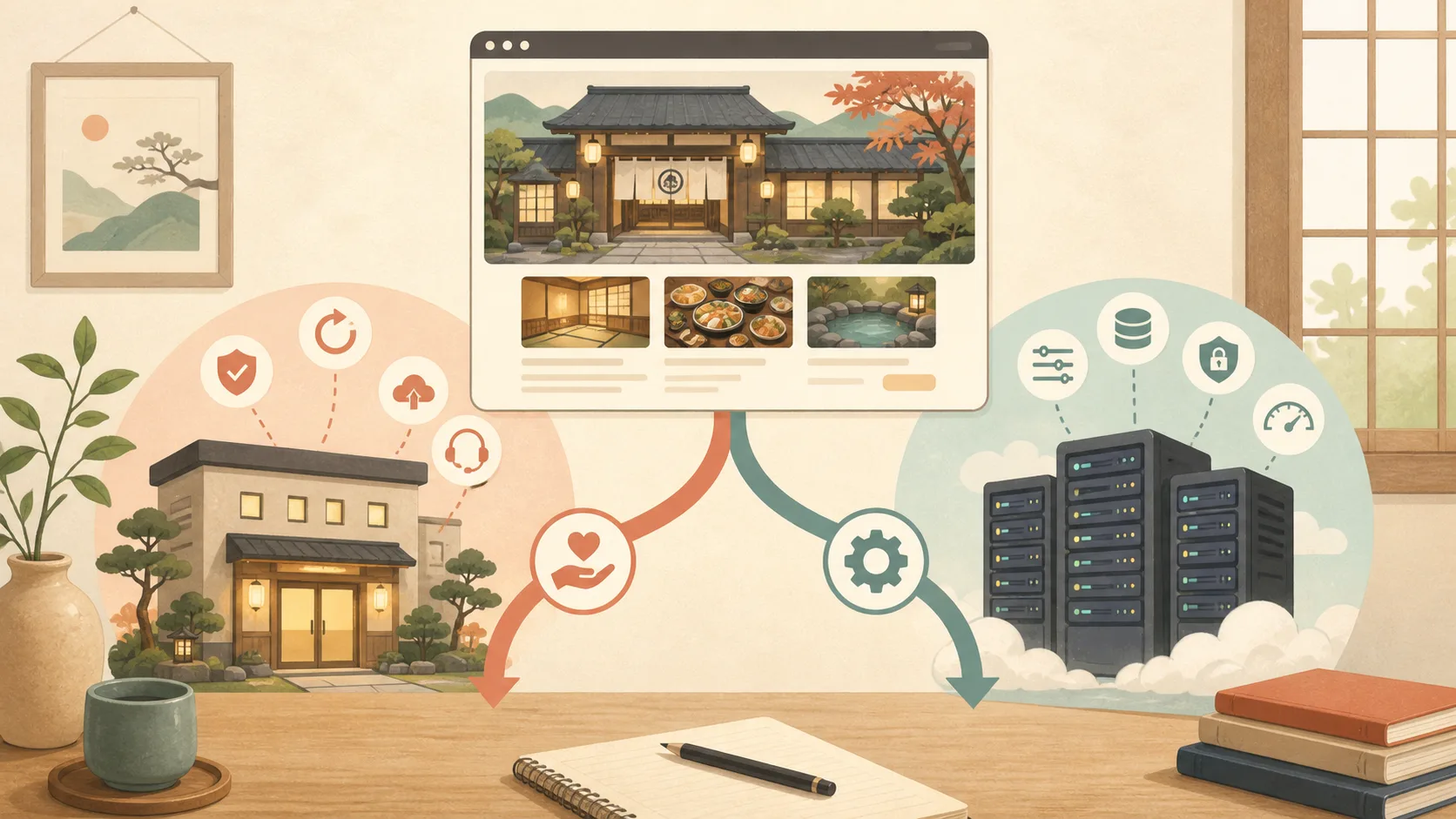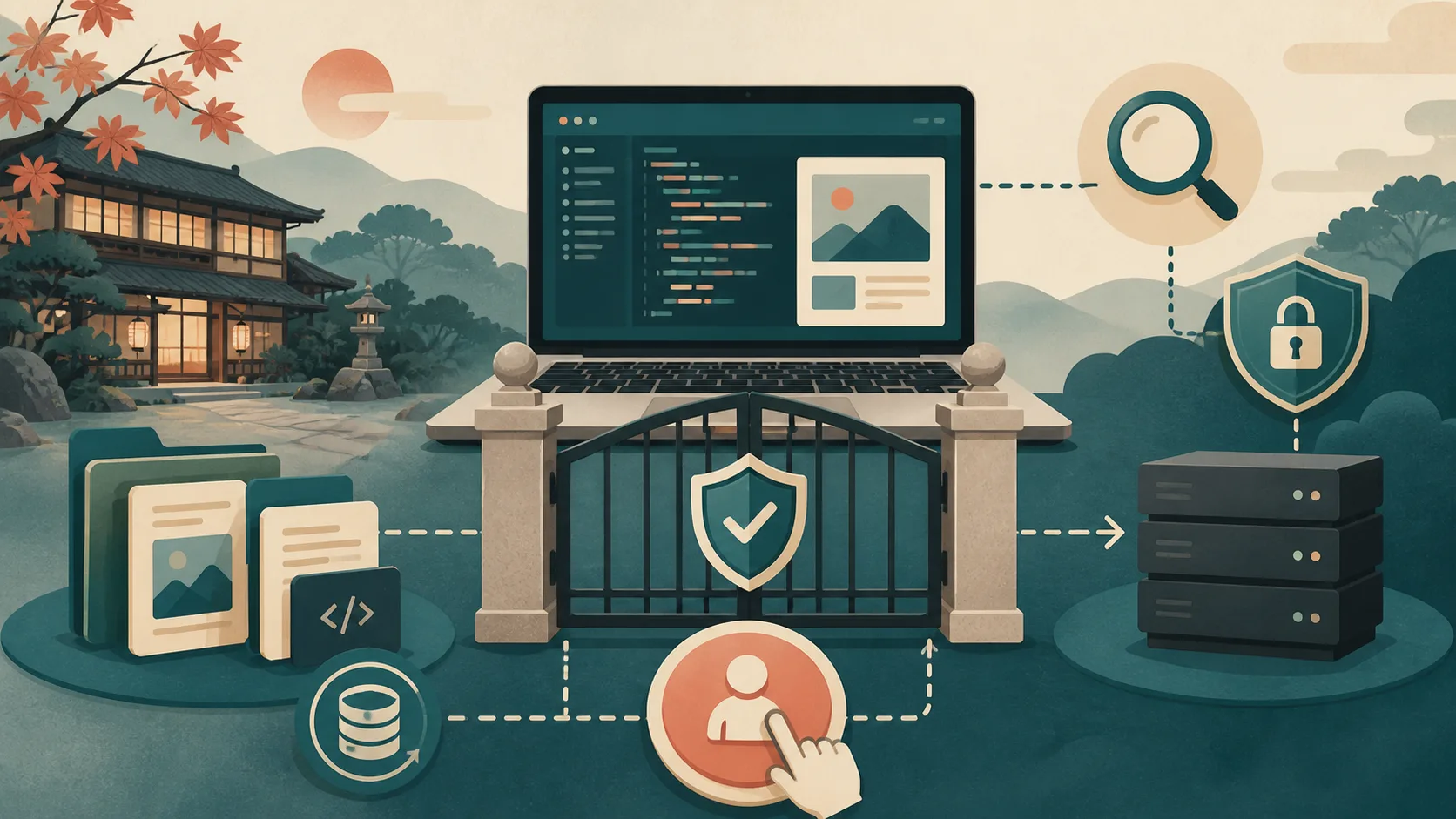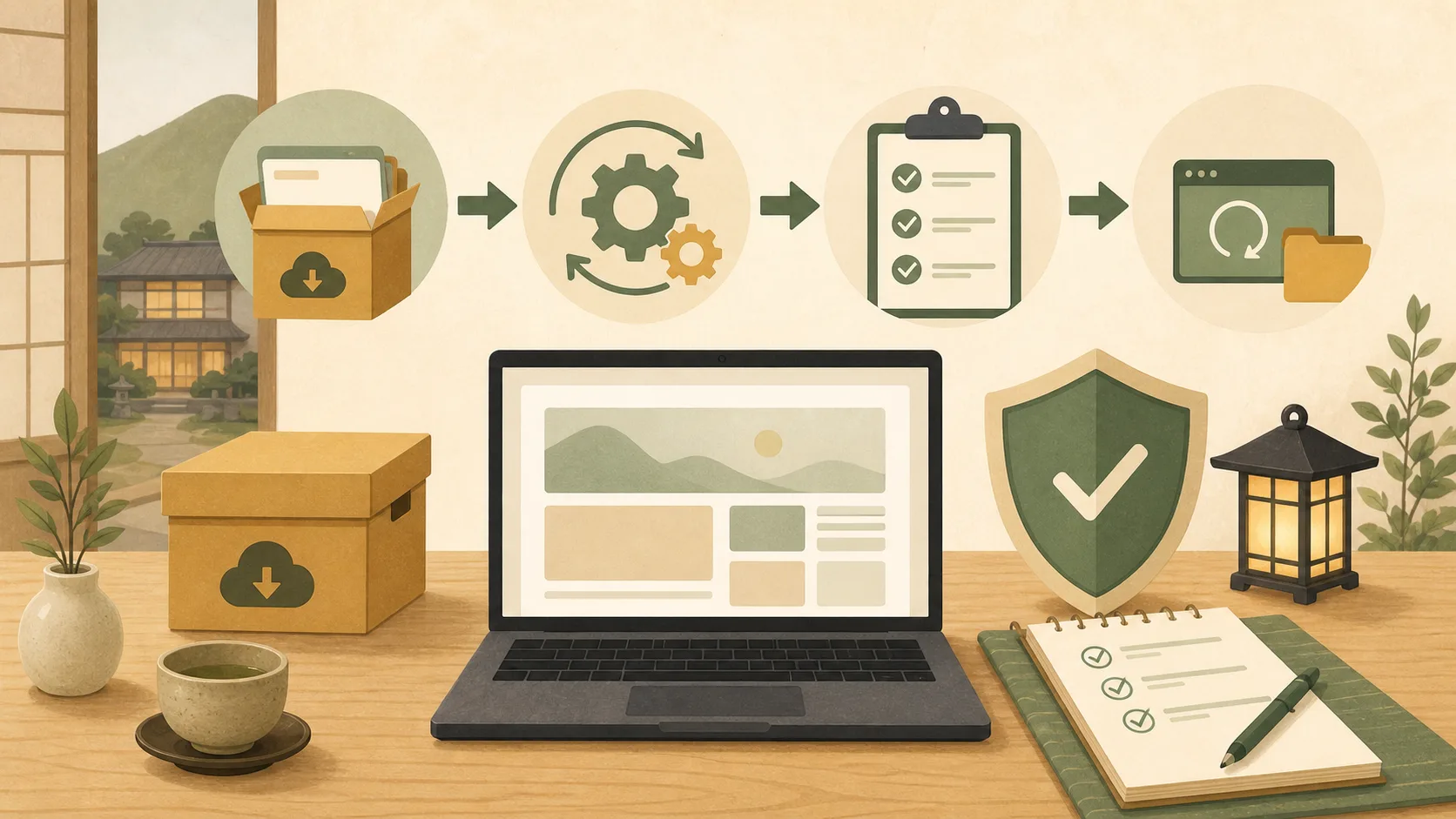
Updating WordPress doesn’t end with pressing the update button. If the reservation button, inquiries, maps, and price information on the hotel’s website stop working, business will be affected. We perform a series of three tasks: “Create a state where you can return,” “Update one by one,” and “Confirm on the same screen as the guest.”
Check the person in charge and target before updating
Check whether to update WordPress itself, the theme, or plugins. If you have a maintenance contract with the production company, updating it without permission may void the warranty. Please check first whether the updates displayed on the management screen are within your scope of responsibility.
Prepare a backup that can be restored
At a minimum, you need a backup that includes the database and wp-content.Don’t worry just because you have a backup function, check the following:
- Date and time of acquisition and target
- Is the storage location different from the production server?
- Restoration method and required time
- Automatic backup retention period
- Is there a charge for restoration or do I need to request a service provider?
If your reservation system is located outside of WordPress, its data will not be included in your WordPress backup.
Record the state before update
Please note the URLs for the top page, guest room, rates, access, reservations, and inquiries. If possible, save the screen and also record the current WordPress, PHP, theme, and major plugin versions. Another key to making it easier to identify the cause is not to make another change just before the change.
Update one by one
Running multiple updates in summary can make it difficult to determine the cause of the problem. Update the items one by one, starting with the ones with the least impact, and check the management screen and public screen each time. We will try out major updates or updates related to the reservation function in a test environment first.
Items to check on the accommodation site
- Top, guest room, rates, and access can be displayed.
- Layout does not collapse on PC and smartphone
- Reservation button goes to the correct reservation destination
- You can submit inquiry forms and receive notifications.
- No SSL warnings, 404s, or PHP errors
- You can log in to the management screen
- Can be displayed even after cache deletion
When making test reservations, the reservation service uses fictitious data to check how it will not affect inventory or payment.
Don’t make changes if a problem occurs
If the display is broken, the causes will increase if you continue to update other plugins or change settings. Records last-minute changes, time of occurrence, symptoms, errors, and determines whether to stop and restore. If you restore the database, inquiries and reservations made after the update may be lost, so check the differences before restoring the database.
How to ask the AI
At first, we ask them to “check the current configuration and available backups by reading only, and make an update plan. Please do not perform the actual update yet.”After confirming the plan, specify the target, testing, and public scope before requesting implementation.
If you do not know the server method, please check Difference between rental server and VPS first. Before asking the AI to perform actual operations, determine the scope of approval using Safety rules for managing inn WordPress with Codex/Claude Code.
For management screen type servers such as Lolipop and Sakura, you can check the procedure for separating the server management screen and WordPress management screen in How to safely update WordPress on a rental server.
Related articles can be searched by purpose from Web Operation Guide for the host.
Reference materials
Note: Actual operations and restoration methods vary depending on the server, theme, plugin, and maintenance contract.