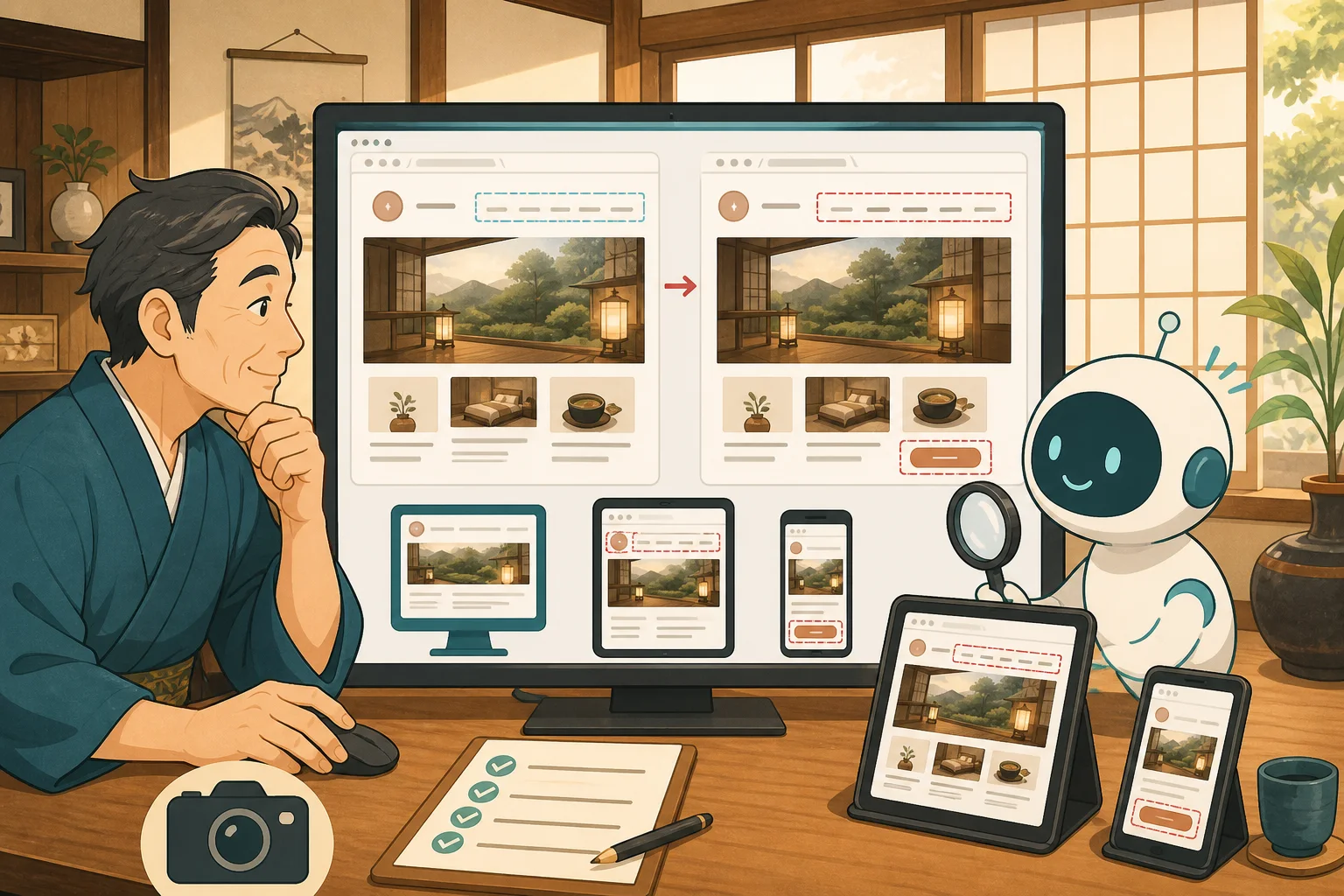
After updating WordPress or the theme, even if the top page is normal, the reservation button on your smartphone may be hidden, or the table on the guest room page may extend to the side.
It is difficult to manually open every page every time. Therefore, by using Playwright, which can automatically operate the browser, you can take a picture of the URL you have decided on with the same screen width and compare the image before and after the update.
In this article, the host explains how, rather than memorizing the Playwright code, you can have Codex or Claude Code help you with the preparation and repetition, and how a person can check acceptance criteria and reservation information.
- Conclusion: What is left to AI is the shooting and difference sorting, what is decided by humans is the normal sample
- What is Playwright?
- Problems that are easy to find by comparing screens
- 5 pages/3 screen widths are enough at first
- Things to prepare for beginners
- What to ask the AI to confirm first
- Minimum Playwright configuration
- Concept of test code
- Precautions when creating a reference image
- The parts that change each time are the differences
- Shoot in the same environment
- How to read when a difference appears
- Let AI check image differences
- Basic authentication/login screen handling
- What should not be captured in screenshots
- Don’t pass the test just by comparing the screen
- Copy and Paste Prompt 1: Plan without implementing it yet
- Copy/paste prompt 2: Create to verification environment
- Copy/paste prompt 3: Investigate the differences after update
- Completion Checklist
- Summary
- Reference materials
Conclusion: What is left to AI is the shooting and difference sorting, what is decided by humans is the normal sample
The basic flow of screen comparison is as follows.
Decide important URLs and screen width
↓
Save the normal screen before update as the reference image
↓
Only one update in the verification environment
↓
Photo taken after update under the same conditions
↓
Playwright and AI sorted out the differences
↓
People check reservations, prices, and ease of use
AI can find differences quickly. However, if the screen itself before the update is wrong, we will use that mistake as the standard. The task of deciding whether “this screen is normal” is left to the host and maintenance personnel.
What is Playwright?
Playwright is a tool for automatically operating browsers such as Chromium, Firefox, and WebKit. You can open a page, press a button, change screen width, save a screenshot, and more.
Playwright’s official Visual comparisons shows you how to first create a reference screenshot and compare it with the later execution image.Screenshots allows you to save not only the displayed range but also the entire page.
Playwright is not just for WordPress. You can use it to check the screens that can be opened in your browser, such as the inn’s official website, static pages, and reservation information.
Problems that are easy to find by comparing screens
- Header menu position/wrapping
- Aspect ratio of logos and photos
- Overlapping heading, body, and sidebar
- Horizontal protrusion of tables and long URLs
- Problem where the reservation button is hidden in another part
- Smartphone menu does not open
- Missing display of images, maps, and videos
- Line breaks and height changes due to font change
- Cookie information covers the screen
On the other hand, it is not possible to confirm form submission, reserved stock, payment, email reception, or correctness of prices with just screenshots.
5 pages/3 screen widths are enough at first
If you start from all pages, you will get tired just checking the differences. First, select 5 pages that are close to your reservation.
- Top page
- Guest room/Prices
- Reservation information
- Inquiry
- Access
The following is an example of the screen width.
| Assumptions | Width example | Problem you want to find |
|---|---|---|
| Computer | 1440px | Horizontal, menu, sidebar |
| Tablet | 768px | Collapse while switching layout |
| Smartphone | 390px | Horizontal protrusion, buttons, mobile menu |
Playwright’s Emulation allows you to reproduce screen size, device, color settings, etc. However, since actual smartphones have differences in browser UI, character settings, communication speed, etc., we will also check the actual device in the end.
Things to prepare for beginners
- Test-only folder that can be opened with VS Code
- Environment where you can use Codex or Claude Code
- Public or protected verification URL to check
- Pre-update screen that can be judged as normal
- Person who checks execution results
If you don’t know the meaning of opening folders or installing extensions, please check Introduction to VS Code for the inn staff first.
There is no need to place tests directly in the theme folder of your production site. Place it in a test folder separate from the one used for site operation so that you can check what will be executed.
What to ask the AI to confirm first
Before introducing Playwright, let the AI investigate the following.
- Are you already using Node.js or Playwright?
- Do you have existing tests or configuration files?
- Is it for production or staging?
- Are there access restrictions such as basic authentication?
- Which pages can I check without logging in?
- Does personal information appear in screenshots?
- Where to save reference images and test results
- Will it affect existing files or settings?
Instead of asking the AI to “just install it,” ask it to first show you the files that will be changed, the amount of space required, and how to delete them.
Minimum Playwright configuration
The official Installation guides you through the process of creating a Playwright Test project and installing the necessary browsers.
When you ask AI to create something, it will generally have the following structure.
website-check/
├─ package.json
├─ playwright.config.js
├─ tests/
│  └─ visual.spec.js
└─ tests/visual.spec.js-snapshots/
└─ Reference image
The file name and save location vary depending on the environment. The reference image is the screen judged to be acceptable, so instead of re-creating it each time, we record the reason for the change and the person who approved it.
Concept of test code
The following is an example for a fictitious site to help you understand how it works. Before running it directly into production, please have the AI or the person in charge adapt it to your environment.
import { test, expect } from '@playwright/test';

test('トップページのスマートフォン表示', async ({ page }) => {
  await page.setViewportSize({ width: 390, height: 844 });
  await page.goto('https://example.com/', { waitUntil: 'networkidle' });
  await expect(page).toHaveScreenshot('home-mobile.png', {
    fullPage: true,
  });
});
This test shows the idea of opening a specified URL at 390px width and comparing the entire page with a reference image.
Precautions when creating a reference image
The image created on the first run is not automatically correct.
- People check public pages
- Check that the inn name, price, photo, and reservation location are correct.
- Check the appearance of your PC/smartphone
- Approve the image as a standard
- Record the approval date and reviewer
Don’t rely on incorrect prices, outdated booking buttons, or broken layouts.
The parts that change each time are the differences
When comparing screens, there are some things that change even if they are not a problem.
- Today’s date and weather
- Vacant rooms, rates, and number of remaining rooms
- Slideshows and videos
- SNS embedding
- Number of accesses/ranking
- Randomly displayed articles
- Cookie information
- Web font loading time
- Cursor and animation
If you leave them alone, the test will fail every time.
How to deal with it
- Shoot after the movement has stopped
- Disable animation only during validation
- Mask changing parts such as dates and inventory
- Fix the state of cookie information
- Use secure validation data instead of production data
- Compare only important parts, not the entire page
Settings that reduce deltas are not meant to hide problems. It is used to separate the “normal parts that change every time” from the “abnormal parts that change with updates.”Please be careful not to mask the reservation button itself and exclude it from confirmation.
Shoot in the same environment
Playwright official documentation explains that screenshots may vary depending on OS, browser, settings, hardware, etc.
When comparing, align the following:
- Playwright and browser versions
- OS or execution environment
- Screen width and height
- Font
- Language/Time Zone
- Color settings
- Login status
- URL and test data
If you shoot separately on the host’s PC, the production company’s PC, and the server, a large number of small character differences may appear. Decide on one place to run regularly.
How to read when a difference appears
Differences are divided into the following three types.
| Judgment | Example | Response |
|---|---|---|
| Problem | Buttons disappear, overlap, or stick out to the side | Stop additional updates and investigate the cause |
| Intended changes | New heading, approved design | Update reference image after human review |
| Judgment pending | Fonts, dynamic inventory, external embedding | Reconfirm conditions |
Do not update the reference image just to pass the test. We will explain what has changed and update once the host approves.
Let AI check image differences
Have the AI report the following:
- Failed URL and screen width
- Changed position
- Parts that disappeared/increased/moved
- Impact on reservations and inquiries
- Possibility of intended changes
- Potential causes for HTML, CSS, and JavaScript
- Additional confirmation before modification
Don’t rely on the image alone to determine the cause; we also check for browser errors, loading failures, and changed files. By using Trace Viewer, you may be able to track operations, screens, networks, etc. during testing. Please decide the target page and storage period so that authentication information and personal information are not saved in the trace.
Basic authentication/login screen handling
If staging is protected with basic authentication, you will need a path to pass authentication information to AI and testing.
- Do not write the password directly into the code
- Do not include in Git or screenshots
- Use safe storage methods such as environment variables
- Do not print authentication header to logs
- Limit workers and validity period
Do not start with the WordPress admin screen or pages showing reservation holders’ information. Begin by testing only publicly accessible pages. Also see BASIC authentication and 2-factor authentication for WordPress login.
What should not be captured in screenshots
- Reserver name, email address, phone number
- Inquiry text
- User list on management screen
- API key, payment information, backup code
- Undisclosed fees and contract information
- Browser password notification
Check test results and traces for personal and confidential information before passing them to AI.Even on public pages, if the reservation confirmation URL contains personal information, it will not be included.
Don’t pass the test just by comparing the screen
Even if the screenshots match, check separately next time.
- The reservation button advances to the correct facility/plan
- You can send inquiries
- You will receive a notification from the accommodation and an automatic reply.
- Phone number and map are correct
- Latest prices, closings, and resident cat information
- Can be operated using keyboard or reading aloud
- Easy to press on a real smartphone
Screen comparison is an inspection of display distortion and is not a guarantee of the inn’s business information or overall functionality.
Copy and Paste Prompt 1: Plan without implementing it yet
I would like to compare the screens before and after updating the inn's WordPress using Playwright.
I'm not familiar with IT.Do not install or change files yet.

Please check the following just by reading and make an implementation plan.
- Node.js, Playwright, presence of existing tests
- Added/changed files and required space
- Test folder and how to delete it
- 5 pages to check first
- How to shoot on PC 1440px, tablet 768px, smartphone 390px
- Parts that change every time, such as date, inventory, slides, etc.
- Risk of personal information and authentication information appearing in photos
- Procedure for human approval of reference image
- Difference report format after update

Please do not make any changes to your production site, WordPress, reservations, or payments.
If you have any questions, please do not speculate and ask me before proceeding.
Copy/paste prompt 2: Create to verification environment
Please create a Playwright screen comparison in an approved testing folder.
Please do not modify production WordPress or theme files.

This applies only to the public pages of the verification environment.
- Top
- guest room/rates
- Reservation information
- Inquiry
- Access

Please shoot at 1440px on your PC, 768px on your tablet, or 390px on your smartphone.
Please list the dynamic parts and explain what should be waited for, fixed, or masked before making any changes.
Please do not exclude the reservation button and inquiry line from being checked.

Please do not automatically approve the reference image and save it as a candidate until I confirm it.
Finally, please report any additional files, execution method, deletion method, and presence of confidential information.
Copy/paste prompt 3: Investigate the differences after update
Examine the Playwright results after making one update in the testing environment.
Please do not make any corrections, additional updates, update the reference image, or reflect it in production yet.

Please categorize your failures into the following:
- Problem
- Possibility of intended changes
- Suspending judgment due to dynamic display, etc.

For each difference, the URL, screen width, changed position, impact on reservation flow,
Please provide possible causes and additional confirmation for HTML/CSS/JavaScript.
Please do not output personal information or authentication information.

Finally, please report the image and URL for people to check, any suggestions for corrections, and how to restore it.
Completion Checklist
- [ ] Managed in test-only folder
- [ ] Target URL and screen width are fixed.
- [ ] Human approved normal reference image
- [ ] Shooting before and after update in the same environment
- [ ] Recorded the handling of dynamic parts.
- [ ] The reservation button is not excluded from the difference check.
- [ ] No secret information in screenshots and traces
- [ ] Differences were divided into problems, intended changes, and judgment pending.
- [ ] A person’s approval was left for updating the reference image.
- [ ] The actual machine, reservations, inquiries, and fees were confirmed separately.
Summary
The purpose of using Playwright is not to increase the number of tests. By leaving the normal screen before the update and comparing it with the after-update version with the same URL, same screen width, and same environment, you can notice the problem before the guests do.
Start with 5 pages and 3 screen widths and grow while sorting out false positives. If you do not have a verification environment, please check Introduction to WordPress Staging, and if you want to make a decision after discovering a problem, please check How to use AI to check display problems after updating WordPress.
Reference materials
- Playwright:Installation
- Playwright:Screenshots
- Playwright:Visual comparisons
- Playwright:Emulation
- Playwright:Trace Viewer
Note: Compatible versions of Playwright, Node.js, and browsers and installation methods will be updated. When actually installing, please check the Playwright official documentation and the procedure for the OS/maintenance environment you are using.