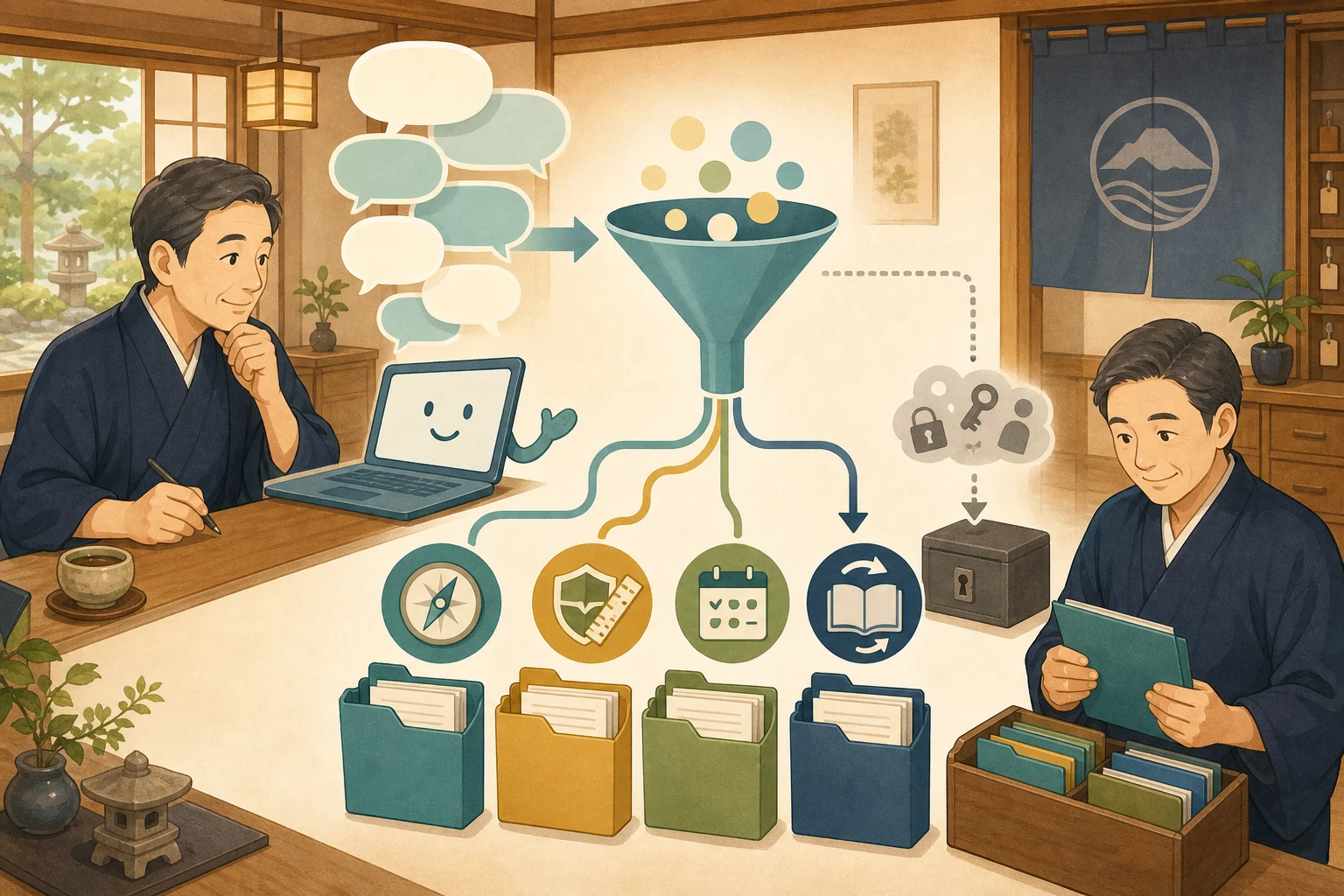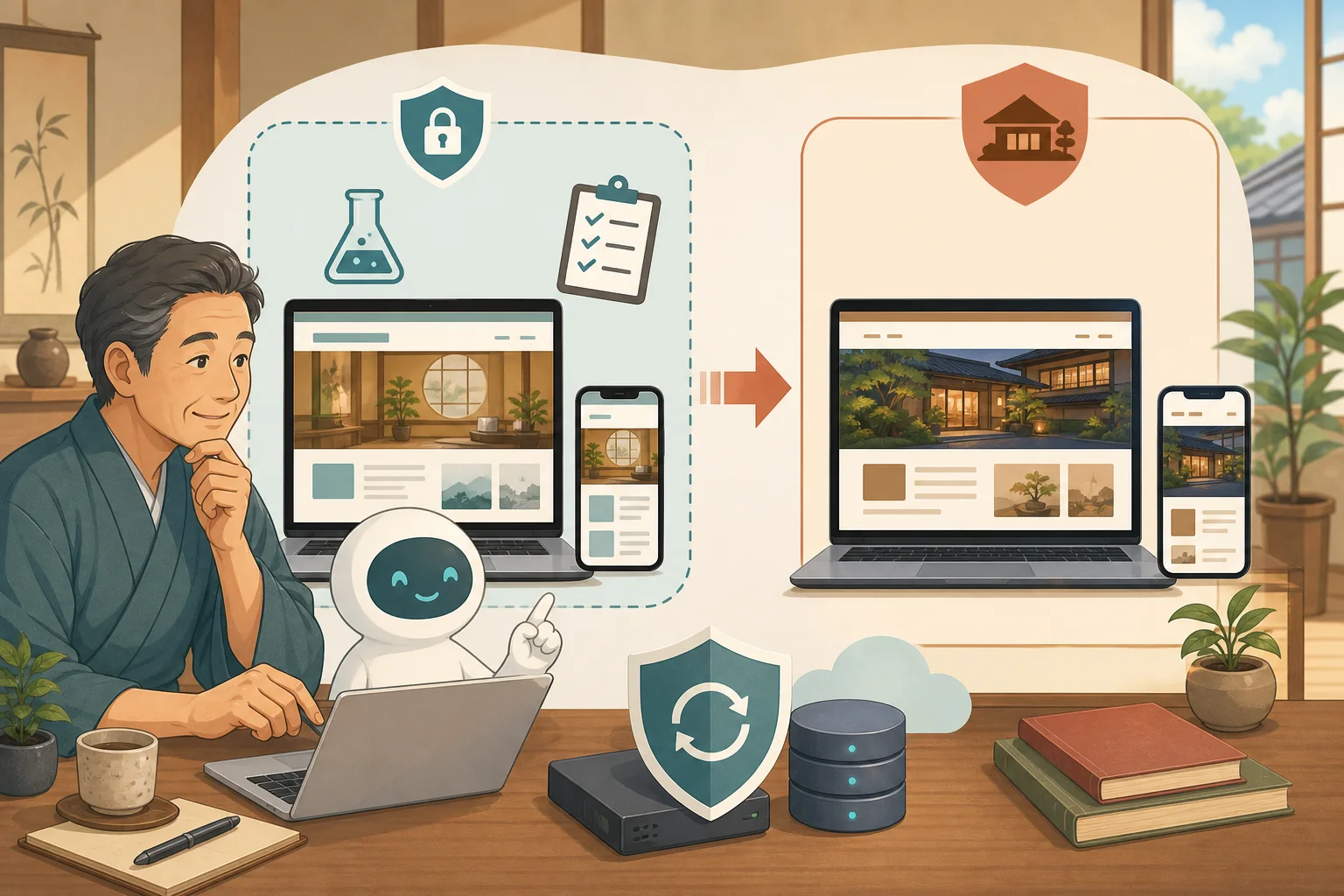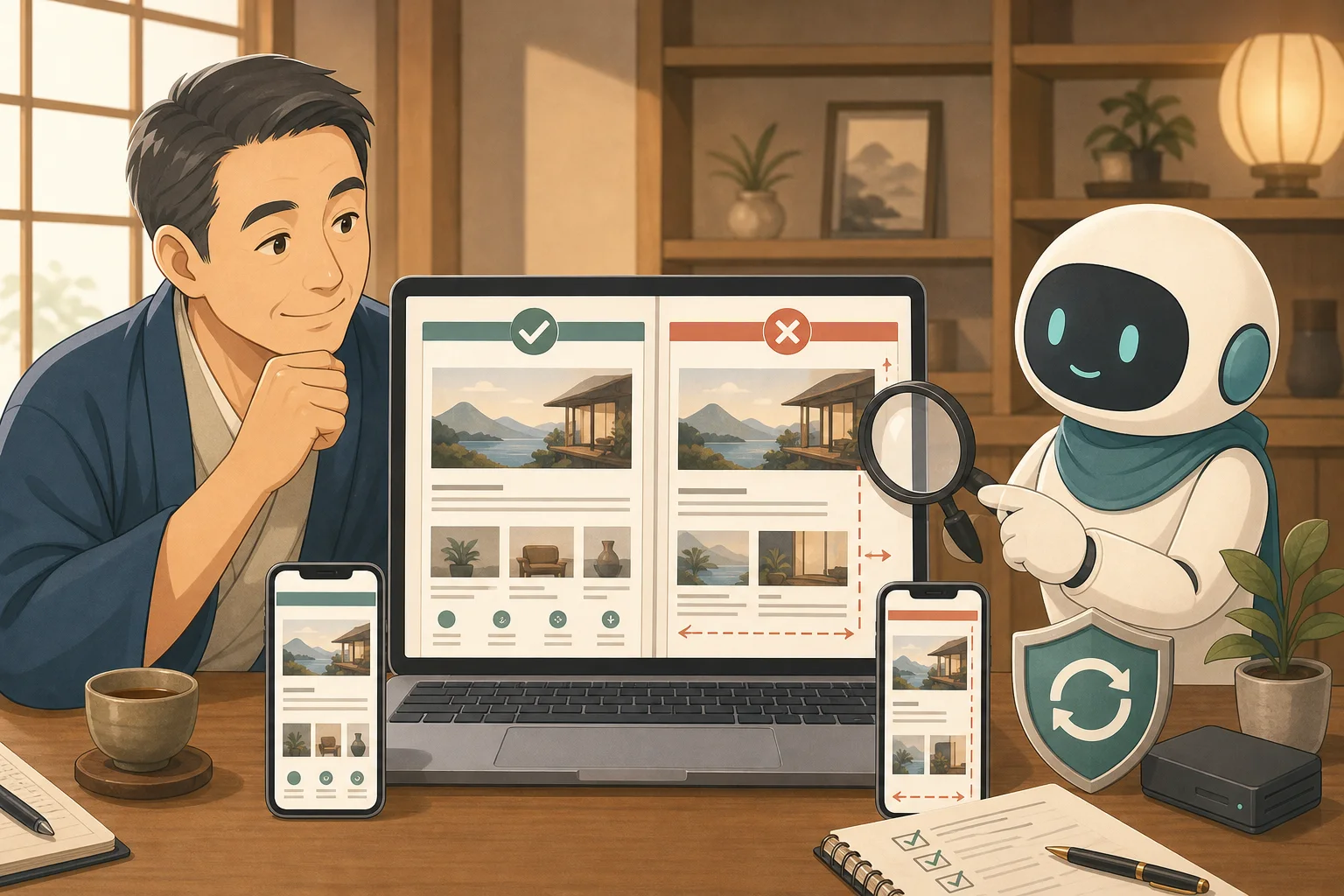
After updating WordPress or the theme, display problems may occur, such as the menu shifting, photos becoming larger, the reservation button being hidden, or the smartphone protruding to the side.
The issue is not just “pressing the update button.” If the normal state before the update is not preserved, you cannot compare where, when, and by what it changed.
AI can compare screens and files before and after the update, and support confirmation work and isolation of the cause. However, you should not completely rely on AI to update without backup, restore including reservation data, and overwrite theme files on an ad hoc basis.
- Conclusion: Pass the “normal sample” before update to AI
- Why does it break down when updating WordPress or theme?
- Important pages to choose first
- Preparation before update that AI can do
- Update one by one
- What can we learn by comparing AI?
- Cutting order when collapsed
- Things that are easy to leave to AI and things that humans can judge
- For rental servers
- For VPS/Cloud
- Copy-paste prompt 1: Do not update yet and investigate
- Copy/paste prompt 2: Compare before and after update
- Copy/paste prompt 3: Check the cause after the display collapses
- Checklist for determining completion
- Summary
- Reference materials
Conclusion: Pass the “normal sample” before update to AI
The safe flow is as follows.
- Record the target and current version before updating
- Back up your files and database and learn how to restore them
- Capture important pages at the width of your computer/smartphone
- If possible, update only one thing in the verification environment
- Shoot the updated image with the same URL and same screen width
- AI compares images, HTML, CSS, and errors
- People check reservations, inquiries, and price displays
- If it passes, update the following, and if there is a problem, stop additional changes.
The screen before the update is not just a commemorative photo. The passing criterion is that “this appearance is correct.”
Why does it break down when updating WordPress or theme?
There is more than one common cause.
| Cause | What can happen |
|---|---|
| Change the theme’s HTML and CSS | Change the heading, menu, margins, and image size |
| Directly edit the parent theme | Original modifications disappear by update |
| Combination with plugins | Sliders, forms, and reserved parts are not displayed |
| Cache | Old and new displays are mixed for administrators and general users |
| PHP/JavaScript errors | Some functions or the entire page do not work |
| Specifying a fixed width | Even if the computer is normal, it protrudes on the smartphone |
| Batch execution of updates | You won’t know which update caused the problem |
If you just ask the AI to “fix it because it’s broken,” it may add CSS and temporarily hide it without checking the cause. First, you need to collect the change history and reproduction conditions.
Important pages to choose first
It is not necessary to check all pages with the same priority. Select from the page closest to your accommodation reservation.
- Top page
- guest room/rates
- Accommodation plan
- Reservation information and reservation button
- Inquiry form
- Access
- Introduction of resident cat
- Frequently asked questions
- Menu open
Check the width of your computer and smartphone. Add tablet width if necessary. If you do not match the URL, screen width, shooting date and time, and login status, the AI may flag unrelated differences as problems.
Preparation before update that AI can do
Listing versions and changes
AI can organize the following within the scope of read permissions:
- Current version of WordPress itself and update candidates
- Parent theme/child theme in use
- Valid plugins and update suggestions
- PHP version
- Presence of original CSS, child theme, and additional JavaScript
- Parts that affect reservations, payments, and inquiries
Having an update candidate and being able to apply it to production are two different things. Check the official information for updates, supported WordPress/PHP, and provider information.
Screen recording before update
In AI and testing tools that can operate the browser, you can save a screenshot by specifying the URL and screen width. For example, the following combination:
| Device assumptions | Screen width examples | Main points to check |
|---|---|---|
| Computer | 1440px | Header, horizontal, sidebar |
| Small notebook/tablet | 768px | Placement in the middle of switching |
| Smartphone | 390px | Menu, table, reservation button, horizontal protrusion |
The numerical values are examples of common conditions for pass/fail. Please also check with your own eyes the terminals that have a large number of actual users.
Mechanical state preservation
Recording not only the screen but also the next time before updating will make it easier to narrow down the cause.
- HTTP response for public URL
- Page title and main heading
- Image/CSS/JavaScript loading failure
- Browser error
- Reservation/inquiry URL
- Critical site health issues
Update one by one
If you update WordPress, the theme, plugins, and PHP at the same time, you won’t be able to separate the cause of the crash.
Repeat the following small round for each update unit.
One update
↓
Organize your cache
↓
Shoot with the same URL and same screen width
↓
Compare images, errors, and reservation lines
↓
If you pass, go to the next update
WordPress official update procedure also provides guidance on backing up before updating. Even when using Auto Update for themes and plugins, do not unconditionally automate important functions, but combine them with backup, notifications, and monitoring.
What can we learn by comparing AI?
Image comparison
- The position of menus and headings has changed.
- The aspect ratio of the photo is distorted.
- Reservation button hidden
- Main text and sidebar overlap
- Margins and font size have changed drastically.
- Horizontal scrolling occurred on smartphone
The screen difference mechanism allows you to compare the reference image and the current image.Playwright official documentation also has a way to save a screenshot and compare it with the results of a later run. There will be differences if the shooting OS, browser, fonts, etc. are different, so we will compare them under the same environment.
Comparison of HTML and CSS
After finding “what’s different” in the image, AI can investigate possible causes.
- CSS classes that disappeared or changed
- Parent theme and child theme priorities
- Specify fixed width,
overflow,position, etc. - Parts that stopped working due to JavaScript error
- CSS/images not loaded
- Old files remaining in cache
However, rather than adding an unlimited number of CSS that look similar, we will check the relationship between the theme change that caused it and the original modification.
Cutting order when collapsed
- Stop additional updates and editing
- Record the URL in question, time, device, and screen width
- Check if the problem can be reproduced on the secret screen or on another device.
- Distinguish before and after clearing cache
- Check browser and server errors
- Identify the most recently updated item
- Consider disabling/reverting to the old version in the test environment
- If you need to restore the production, check the reservation/inquiry difference after backup
In the event of a major site-wide error, WordPress has a Recovery Mode to help manage problematic themes and plugins. However, if you do not receive the email, do not have administrator privileges, or the reservation function is affected, please do not force the host to do so; instead, contact the maintenance person or server company.
Things that are easy to leave to AI and things that humans can judge
| Easy to leave to AI | Leave human confirmation/approval |
|---|---|
| List of versions and update candidates | Update date and time |
| Check URL, HTTP, and links | Correctness of price, inventory, and business information |
| Screenshots before and after update | Ease of use on actual smartphone |
| Differences in HTML, CSS, and errors | Confirmation operations for reservations and payments |
| Comparison of possible causes and fixes | Production restoration and handling of customer data |
| Reconfirmation and work records | Division of responsibility with production company and maintenance contract |
Do not complete the process just because the AI reports that it has fixed it. The host confirms the reservation button, phone number, inquiry, price, and smartphone display.
For rental servers
Check out the server company’s backup, staging, restore, and PHP switching functions for Lolipop, Sakura Rental Server, X Server, ConoHa WING, etc.
There is also a method of having the host operate the screen while creating confirmation items and judgment materials for the AI, without pasting the password for the management screen to the AI.For the specific update order, please refer to How to safely update WordPress on a rental server.
For VPS/Cloud
With VPS, not only WordPress, but also the OS, web server, PHP, database, cache, and containers are affected.
- Do not update WordPress and PHP/OS on the same day
- Save both configuration files and database
- Separate production and verification environments
- Do not unconditionally give root privileges to AI
- Reboot or restore is done after human approval
Please also check Responsibility for operating WordPress on VPS and Permission design when letting AI access the production server first.
Copy-paste prompt 1: Do not update yet and investigate
We are considering updating the WordPress main body, theme, and plugins for the inn.
I'm not familiar with IT.Please do not perform any production updates or configuration changes yet.

Find out the following by just reading and make a table.
- Current version of WordPress, PHP, themes in use, child themes, and active plugins
- Update candidates and official compatible conditions/changes
- May affect guest rooms, rates, reservations, and inquiries
- File/database backup required before update
- How to restore and reservations/inquiries that may be lost due to restoration
- Important URLs and screen widths to compare before and after update

Do not display confidential or customer information.
If you are unsure about anything, please do not speculate and ask me before updating.
Copy/paste prompt 2: Compare before and after update
Compare the display before and after the update for one approved update.

Conditions:
- Compare with same URL, same browser, same screen width
- Computer 1440px, Tablet 768px, Smartphone 390px
- Check top, guest room/rates, reservation information, inquiries, access
- Check HTTP, images, menus, headings, horizontal overflow, reservation buttons, and browser errors
- Differences in appearance are divided into "problems," "possibility of intended changes," and "suspension of judgment."
- Do not perform additional updates or restores without permission even if there is a problem

Finally, please report the changes, comparison results, unconfirmed items, and URLs for the staff to check.
Copy/paste prompt 3: Check the cause after the display collapses
The site display has collapsed after updating WordPress. Do not modify or restore it yet.

Please read and investigate in the following order.
1. Organize the URL, device, screen width, and time of occurrence where the problem occurs.
2. Organize the most recently updated WordPress, themes, and plugins one by one.
3. Compare screenshots before and after update and HTML/CSS/browser errors
4. Rank possible causes of cache, themes, plugins, and original CSS with evidence
5. Compare options for fixing, reverting last update, and restoring backup
6. Indicate the scope of influence of each proposal, how to restore it, and the impact on reservation/inquiry data

Please explain the cause before adding CSS to hide the appearance.
Please do not make any production changes, updates, disables, or restores until I approve them.
Checklist for determining completion
- [ ] Recorded updated items and old and new versions.
- [ ] Comparing before and after update under the same conditions
- [ ] Checked main pages on PC/smartphone
- [ ] Confirmed reservation, inquiry, phone call, and map.
- [ ] No new critical errors in browser and server
- [ ] Normal after cleaning cache
- [ ] Recorded unconfirmed matters and human confirmed results
- [ ] Learn how to back up and restore in case of problems
Summary
The biggest help from AI is not to press the refresh button for you. The idea is to preserve the normal state before the update, compare the after update under the same conditions, and when a problem occurs, narrow down the cause without making repeated changes.
You can start by saving 5 important pages on your computer and smartphone. You can find out more about backup and restoration in Backup and restoration before WordPress update, and check items to check after publishing in HTTP/SEO/Smartphone display checklist.
Reference materials
- WordPress.org: WordPress Update
- WordPress.org: Automatic update of plugins and themes
- WordPress.org:Recovery Mode
- WordPress developer documentation: Upgrading WordPress
- Playwright:Visual comparisons
Note: Management screen name, backup, staging, restoration, and PHP switching method vary depending on the server company and contract plan. Prioritize the latest procedures from your contractor and theme/plugin provider.