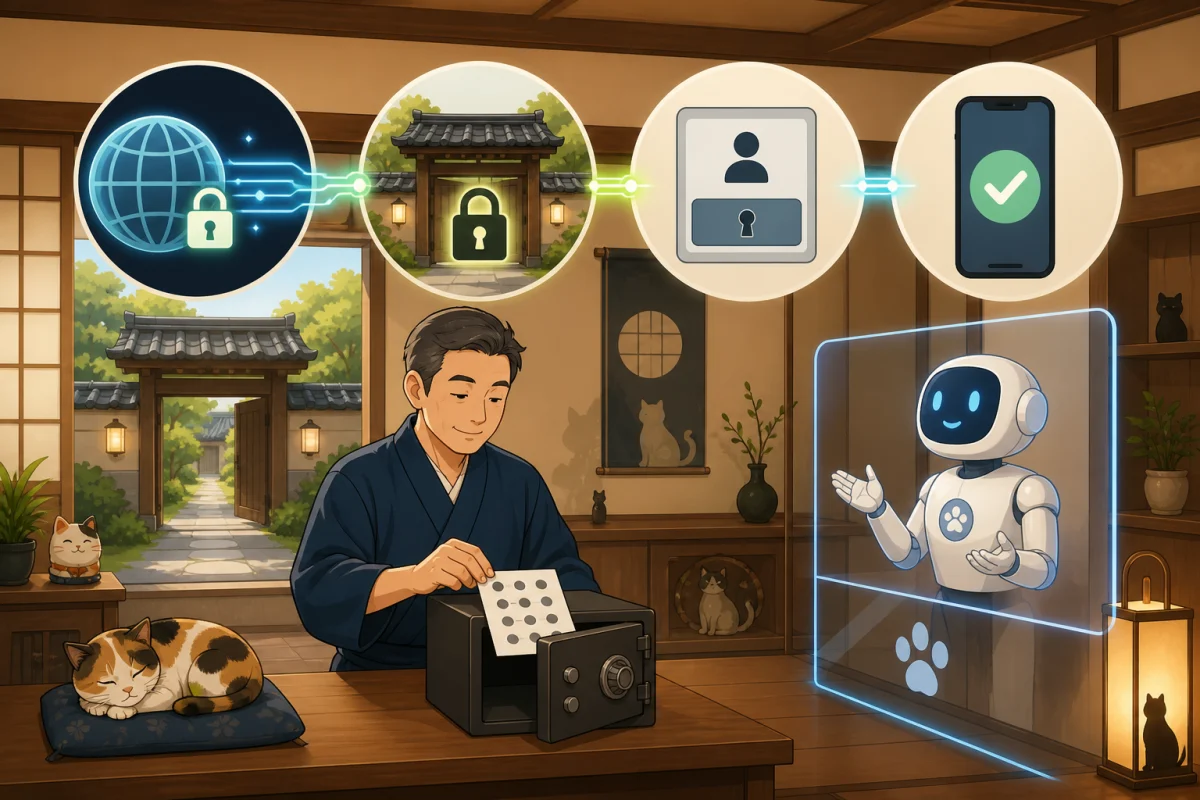
As a way to protect the WordPress login screen, I see instructions such as “adding basic authentication” and “enabling two-step authentication.”Although the names are similar, the locations and roles they protect are different.
A small accommodation site may include a reservation form, inquiries, payments, and integration with external services. In addition to increasing your defenses, it is important to introduce a system that does not stop necessary functions and allows you to restore them even if you are unable to log in.
- Conclusion first: Four different roles
- HTTPS is the foundation of everything
- What is Basic authentication?
- What is two-step verification?
- Don’t confuse Basic Authentication with Application Passwords
- Function to check first on the accommodation site
- Order of safe deployment
- 1. Check the current administrator and linked services
- 2. Take a backup that can be restored
- 3. Read the release/recovery procedure first
- 4. First try two-step verification with one administrator account
- 5. Expand the target audience to the necessary users
- 6. Check the impact before deciding on Basic authentication
- 7. Check the operation of the guest side
- Ask AI to separate “investigation” and “change”
- Confirmation table before and after installation
- Summary
- Reference materials
Conclusion first: Four different roles
| Defense | What to protect | What users should do |
|---|---|---|
| HTTPS | Communication between a computer or smartphone and the server | Connect using an HTTPS URL and check the browser’s connection information |
| Basic authentication | Server-side entrance before reaching WordPress | Enter common or individual ID/password |
| WordPress login | Administrative privileges within WordPress | Enter with your WordPress ID and password |
| Two-factor authentication (2FA) | Unauthorized login after password is leaked | Add smartphone verification code, etc. |
Basic authentication and two-factor authentication are not an either/or choice. However, the same combination is not necessarily right for every inn. Begin by setting up HTTPS and a strong password that is not reused, then prioritize two-factor authentication for administrators. Decide whether to add Basic authentication after checking its effects on the server configuration and external integrations.
HTTPS is the foundation of everything
HTTPS encrypts the communication content. If the login screen remains `http://`, authentication information cannot be sent securely. Even with Basic Authentication, authentication information cannot be handled securely on the network without HTTPS, so first confirm that the entire site is set to HTTPS.
Please make sure that not only does your browser address start with `https://`, but also that the WordPress admin screen and login screen are set to HTTPS.If you do not know how to set up the certificate, consult with your contracted rental server company or maintenance personnel.
Connection information icons vary by browser. In desktop Chrome, the address-bar lock icon has been replaced by an icon that opens site information and settings. Check the URL and the browser’s connection information instead of judging only by the presence of a lock icon.
What is Basic authentication?
Basic authentication is another entrance that the web server issues before WordPress. When you go to the configured page, you will be asked for your ID and password before the WordPress screen is displayed.
While it becomes difficult for the unspecified number of people to directly access the login screen, you should be aware of the following points.
- Different from WordPress permission management for each user
- If you share the Basic Authentication ID and password, it is difficult to tell who used it.
- Setting methods vary depending on the server company, Apache/nginx, etc.
- If you uniformly protect the entire
/wp-admin/, some WordPress functions may stop working. - Must be combined with HTTPS
- Before setting up, you need to know how to cancel when you can no longer log in.
Rental servers may have an access restriction function on the management screen. VPS requires technology to manage web server settings and authentication files. Don’t just paste settings you find on the internet; check your provider’s official instructions and current configuration.
What is two-step verification?
Two-step verification is a mechanism that checks a temporary code created by an authentication app on your smartphone in addition to your WordPress password. Even if your password is leaked, it will be difficult to log in.
On a typical WordPress site, use a maintained two-factor authentication plugin or similar solution and configure it separately for each user. Begin with users who have administrator privileges, then extend it to other users, such as editors, as needed.
Prepare a recovery method before enabling
Smartphones can break down, be lost, or change models. The backup code issued at the time of setup is not only stored on the site or on the smartphone you usually use, but also stored securely on paper or in a reliable password management tool.
It is dangerous to think that “if you have a problem, just delete the plug-in file.”You may even break other settings, or you may not be able to find the cause of the problem. Be sure to check the plugin’s official recovery instructions and how to contact another administrator or server company beforehand.
Don’t confuse Basic Authentication with Application Passwords
WordPress has “Application Passwords” for external applications to connect to REST APIs, etc. The HTTP basic authentication method is used for communication, but it is a different function from the basic authentication on the server side, which is installed in front of the login screen.
Since the names are similar, when consulting with AI or maintenance personnel, explain the purpose as follows.
- “I would like to consider server-side basic authentication before reaching
wp-login.php.” - “I want to check the WordPress Application Passwords for external tools to connect to the REST API”
Application Passwords are also not used in place of the normal management screen login password. It is issued for each external linkage, and can be revoked individually when it is no longer needed.
Function to check first on the accommodation site
When Basic Authentication or Security Plug-in is enabled, external communication may stop in a place invisible to the administrator. Before implementation, write down the following usage status.
- Collaboration with reservation forms and reservation engines
- Inquiry form and automatic reply
- Notifications from payment services
- Jetpack and external backup/monitoring services
- Apps and update tools that use REST API
- Screens and plugins that use
admin-ajax.php - Collaboration with site controllers, PMS, OTA, etc.
The official WordPress security document also warns that adding server-side password protection to /wp-admin/ may break the functionality of using admin-ajax.php.Just because you go to the management screen immediately after setting it up doesn’t mean it’s done.
Order of safe deployment
1. Check the current administrator and linked services
Check to see if there are any unnecessary administrator accounts left by retired employees or production companies. Rather than increasing the number of shared administrator accounts, each person uses their own account. At the same time, we will create a list of external collaborations.
2. Take a backup that can be restored
Save both files and the database, and record the backup time and who can restore it. As explained in Introduction to WordPress updates, confirm the restoration method as well as taking the backup.
3. Read the release/recovery procedure first
Make a note of how to cancel 2-step authentication, contact information in case you lose your smartphone, and how to restore basic authentication. If there is only one person in charge of operations, work during the hours when you can contact the server company or maintenance personnel.
4. First try two-step verification with one administrator account
A single administrator can use plugins whose maintenance status and compatible versions have been confirmed. Save your backup code and try logging in in another browser or private window before closing the current screen.
5. Expand the target audience to the necessary users
Once the recovery test is complete, we will expand the scope to users with important privileges such as administrators. Settings are done on the user’s smartphone, and authentication codes and backup codes are not shared via chat.
6. Check the impact before deciding on Basic authentication
Check whether the scope of access can be specified using the official functions of the contracted party, and whether the external service can pass authentication. If you don’t know, don’t leave the server-side settings changes directly to AI, but consult with the production company or server company.
7. Check the operation of the guest side
Finally, try the following while logged out and on your smartphone:
- Top page and main pages open
- Administrator can log in and log out
- You can send reservation/inquiry forms
- Receive automatic replies and administrator notifications
- Payment and external service test notifications pass
- There are no abnormalities in backup, monitoring, and collaboration tools.
Ask AI to separate “investigation” and “change”
At first, don’t let them change the settings, just check the current situation and scope of influence. Do not paste passwords, authentication codes, private keys, or customer information into conversations.
Do your research before adding additional login protection to this WordPress site.

Purpose:
- Check HTTPS, WordPress administrator, and 2-step verification
- Reservations, inquiries that may be affected when Basic authentication is added,
Identify admin-ajax, REST API, and external collaboration
- Organize recovery methods and check items

Please just read and explain this time.
Please do not install plugins, change settings, edit files, restart, or publish.
Please do not display confidential or personal information.
Don't make assumptions about anything you don't know, but show us how to check it.
After a person confirms the survey results, we ask them one by one: “Which features should be enabled, for which accounts, and when?”The scope of approval with AI is also explained in Safety rules for managing WordPress with Codex/Claude Code.
Confirmation table before and after installation
- The site and login screen are HTTPS.
- Administrator is using a separate account
- Changed to a password that is strongly not reused.
- Backed up files and database
- Safely stored backup code for 2-step verification
- Checked login and recovery method using another browser
- Confirmed how to cancel Basic authentication before setting.
- Tested reservations, inquiries, payments, and external linkages.
- Recorded who made the settings and when.
Summary
HTTPS protects communications, Basic authentication controls the server entrance, WordPress login controls administrative permissions, and two-factor authentication provides protection after a password leak. Their roles differ, so do not choose by name alone. Begin by setting up HTTPS, individual accounts, strong passwords, and two-factor authentication for administrators.
When adding Basic authentication, first check the impact on reservations, inquiries, REST API, admin-ajax.php, etc., and how to cancel it. Security measures are complete when they keep the inn operating and allow recovery if a problem occurs; the number of measures installed is not the measure of completion.
Reference materials
- WordPress Developer Resources:Hardening WordPress
- WordPress.org: Two Factor Plugin
- WordPress Developer Resources:Application Passwords
- Apache HTTP Server:Authentication and Authorization
- nginx:HTTP Basic Authentication module
- Chromium Blog: An Update on the Lock Icon
Note: On October 9, 2026, the HTTPS guidance was partially corrected so it does not rely only on a lock icon. The original full information check date remains August 16, 2026.
Note: Server and plug-in specifications may change. When installing, please check the official information of your contract partner and each product.