If I ask Codex or Claude Code to register a WordPress article, and they report that it has been published, is the work complete?
In reality, the publishing operation is an intermediate step in the process. You can only consider it complete when you create a state where you can revert to the state before changes were made, have someone check the draft, and confirm that the page responds normally after publication, and that the text and images are displayed as intended.
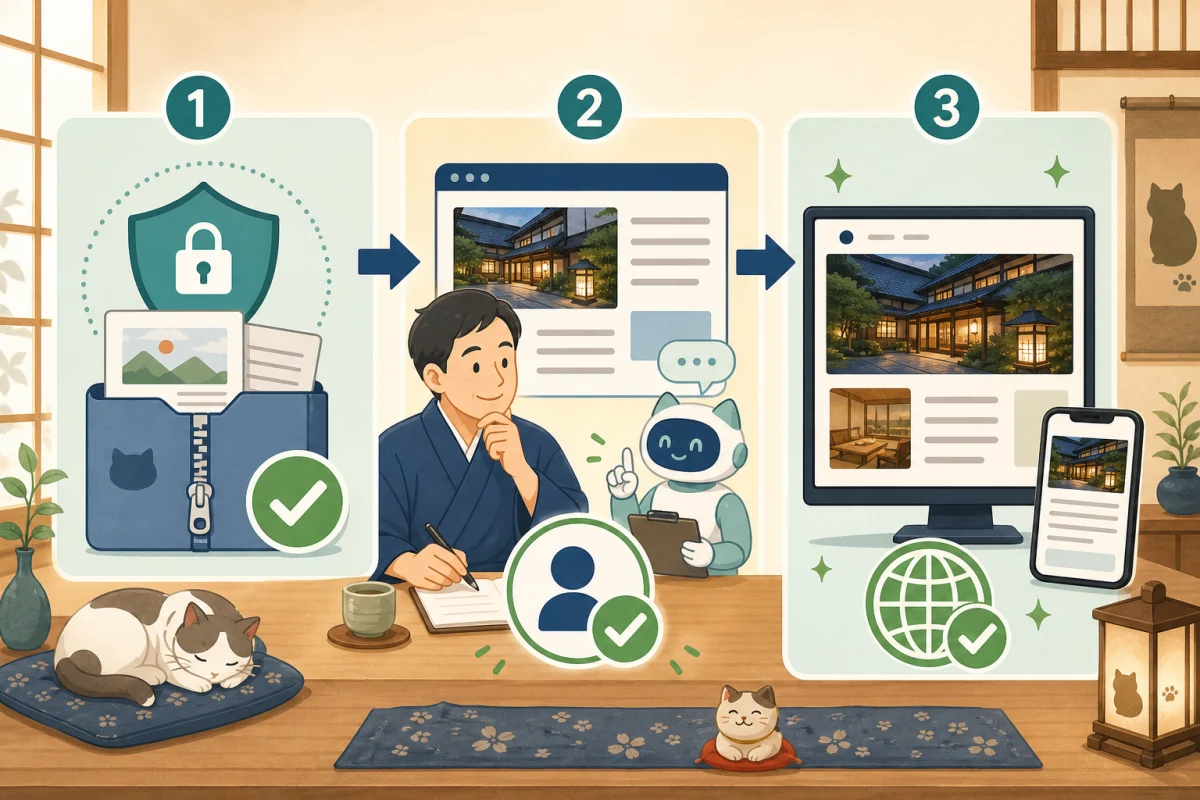
In this article, we will explain Backup → Draft → Approval by someone → Publish → HTTP confirmation → Screen confirmation as one flow. The command examples are for a hypothetical environment. Prioritize procedures for contracted servers and maintenance personnel.
- Three boundaries to decide first
- Overall flow
- 1. Fix the target site and changes
- 2. Take a backup and verify it
- 3. Register only one draft at first
- 4. People check the draft
- 5. Confirm disclosure approval in detail
- 6. Specify post ID and publish
- 7. Check the internal status of WordPress
- 8. Check the HTTP response of the public URL
- 9. Check the screen on your computer and smartphone
- What to include in your completion report
- A series of request texts that can be used by copying and pasting
- Summary
- Reference materials
Three boundaries to decide first
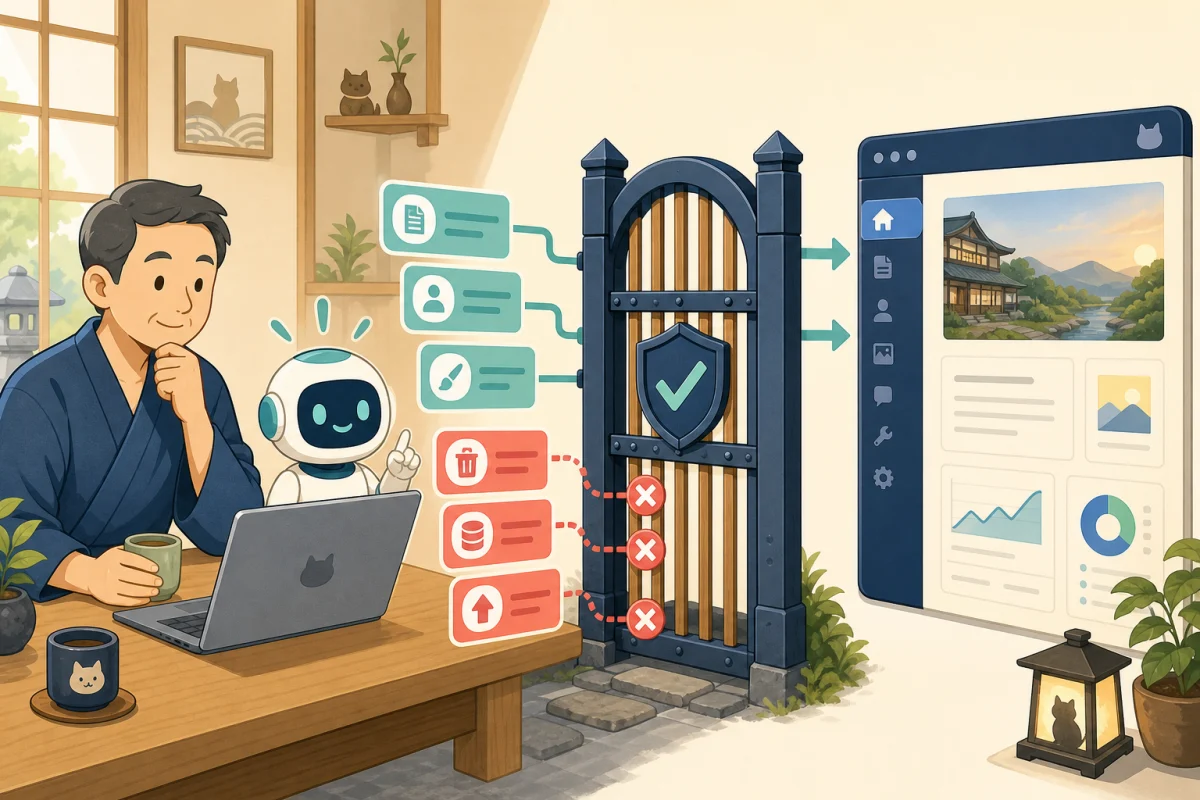
Before requesting AI, we divide the work into three stages.
- You can proceed with AI alone: manuscript confirmation, link investigation, draft registration, reading confirmation
- You can proceed after someone approves: Publishing, updating existing articles
- AI alone cannot advance: deletion, database operation, server update, restoration
If you just ask them to “add an article,” it’s unclear whether it’s a draft or the actual release. We will also tell you the target article, publication range, suspension conditions, and confirmation items.
Overall flow
Check target sites and articles
↓
Obtain and verify backup
↓
Register one article as a draft
↓
People approve content and publication conditions
↓
Publish by specifying target ID
↓
Check the status on WordPress
↓
Check HTTP response, text, images, links, and smartphone display
↓
Record results and unconfirmed matters
If you fail during the process, stop at that stage without repeating the next operation.
1. Fix the target site and changes
First, let the AI organize the following information.
- Target site and whether it is a production or test environment.
- New article or update of existing article?
- Title, slug, description
- Original text file
- Categories, tags, eyecatches
- Will it be published as a draft or after approval?
- URL to check after publishing
There is no need to display confidential information or internal server settings in the AI’s answers.”Target confirmed” and “Display connection information in full” are different.
2. Take a backup and verify it
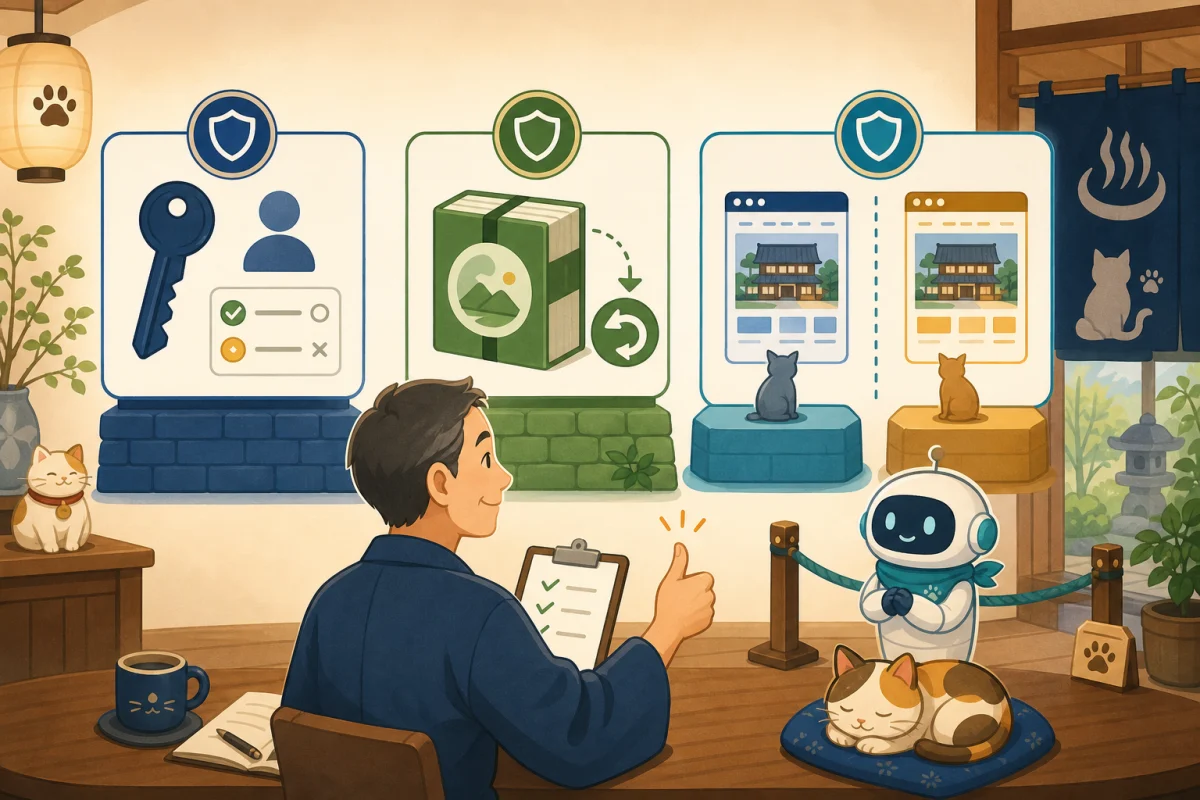
A backup cannot be considered successful just because one file is created. Verify at least the following:
- Backup process completed successfully
- Contains database and necessary files
- You can read the archive
- Corruption can be detected using checksum etc.
- Know the save location and acquisition time
- Restoration procedure and person in charge have been determined
If you are just publishing a new article, you may be able to restore it using the WordPress revision or trash can. However, if you change images, categories, menus, and themes at the same time, you may not be able to return to the original display even if you restore only the articles. You need a backup that matches your changes.
If the backup fails
Don’t run the same publish command multiple times after failure. First, check to see if you have any incomplete backups or recent verified backups.
- DB migration, deletion, WordPress main body/theme/plugin update: Cannot proceed without a clean and latest backup
- Operations that can be easily undone, such as a new draft: The person in charge checks the impact and recovery method and makes a decision.
- Unknown cause or unable to verify existing backup: stop working
Don’t just say “backup failed but continued”, record why you can continue and how to revert.
3. Register only one draft at first
WP-CLI’s wp post create allows you to specify the posting status. At first, fix it to draft and register only one item.
wp post create article.md \
  --post_type=post \
  --post_status=draft \
  --post_title="記事タイトル" \
  --post_name="example-article" \
  --porcelain
This is an example to show how it works, and is not a command that can be pasted directly into production. In actual operation, the post format, status, number of posts, body file location, and category candidates will be fixed through the Restricted Wrapper.
The post ID obtained from --porcelain etc. will be recorded for future confirmation. If you select a target only by searching for the title, you may accidentally update an article with the same name.
4. People check the draft
AI can mechanically check the following items, but humans will make the final decision.
- Title and search intent match
- description correctly summarizes the text
- Easy to understand heading order and conclusion
- Facts, prices, specifications and dates have a verified source
- Internal and external links have the correct destination
- Category, tag, and author are correct
- Eyecatches and alternative text fit the content
- Contains no personal information, credentials, or internal paths
- I don’t write about things I don’t have actual experience of as experiences.
Also open a preview of the admin screen to check if your Markdown, tables, code, and images are corrupted. At this stage, the public URL is not guaranteed to be HTTP 200.
The specific steps for setting categories and images using WP-CLI are explained in How to safely set categories, tags, and eyecatches.
5. Confirm disclosure approval in detail
Once the person confirms it, approve it by limiting the target ID and allowed operations.
I have checked the draft post ID 123.
Please publish only this one item.

Please do not change the title, slug, body, category, tags, or images.
Please do not touch other articles, plugins, themes, or settings.
After publishing, report the status on WordPress and the published URL,
Check the HTTP response and screen display.
Rather than just saying “OK” or “Publish”, it is clearer what is targeted and what should not be changed.
6. Specify post ID and publish
With WP-CLI, you can change the post status to publish for the target post ID.
wp post update 123 --post_status=publish
This command is a general example for ordinary posts. With a save-time content converter such as the Jetpack Markdown module, even an intended status-only change can pass stored HTML back through conversion and replace the stored Markdown source. At Neko Yado Research, the current translated-article publication process supplies the approved Markdown body again and compares the stored source after publication.
In this environment, use an administrator-reviewed dedicated process with a fixed approved body file and post ID. The body file must exclude front matter; do not supply a separately converted HTML version or a source rewritten by AI. Check both the Markdown source and rendered content before and after publication. Do not proceed to another operation if source preservation cannot be confirmed.
Rather than passing the free WP-CLI to AI, we will make it a dedicated process for “releasing only one approved ID.”The processing side also checks that the current state is draft before publishing. If it has already been published, the ID does not exist, or the post type is different, it will be stopped.
7. Check the internal status of WordPress
Even if the exit code of the publish command is 0, it may have targeted a different article. Reread the post ID, status, slug, and title.
wp post get 123 \
  --fields=ID,post_title,post_name,post_status \
  --format=json
Check if the expected post ID, slug, and publish match. We also check the poster, category, eye catch, and description separately. When using Markdown storage, also compare the stored source with the canonical manuscript approved for publication.
8. Check the HTTP response of the public URL
Next, check the HTTPS URL that the viewer accesses from the outside.
curl --location --silent --show-error \
  --output /dev/null \
  --write-out '%{http_code}\n' \
  https://example.com/example-article/
--location follows the forwarding destination, and http_code of --write-out displays the final response code. If you want to treat 4xx/5xx as a failure in automatic processing, check the specifications of the curl you are using and combine --fail or --fail-with-body.
It’s not just articles that you check.
- Published article: Respond with HTTP 200
- Top page: Responds with HTTP 200 even after publication
- Category page: Articles are displayed in the intended classification
- Internal link: Link destination does not result in 404
- Forwarding: Not moving to an unintended URL
HTTP 200 is a confirmation that “the page was received” and is not proof that the correct article was displayed beautifully.
9. Check the screen on your computer and smartphone
Finally, check the actual screen.
- Titles, headings, paragraphs, and bullet points are intact.
- Eye catch and text image are displayed
- Tables and codes do not protrude from the screen
- Open internal links, external links, and reserved links
- Header and footer can be manipulated
- Text and buttons are not too small on smartphones
- No old content remains due to caching
- Not displayed in unintended new columns or categories
For changes related to reservation and inquiry forms, decide with the property how to test submissions and payments. Do not try using real guest information or real card information.
What to include in your completion report
The report from the AI should not only say “It’s finished” but also in the following format.
Publication results
- Target: Post ID 123, example-article
- Backup: Obtained and consistency confirmed
- Publication status: Check publish
- Public URL: HTTP 200
- Confirmed: body, eye catch, description, category, internal link
- Display confirmation: PC width, smartphone width
- What hasn't changed: other articles, themes, plugins, settings
- Unconfirmed matter: Actual submission of reservation form
It is important not to hide unconfirmed matters.”Not confirmed” and “There is no problem” are not the same.
A series of request texts that can be used by copying and pasting
Add this article to WordPress.

Work order:
1. Organize target sites and changes
2. Take a backup before the change and check the consistency
3. Register only one new article as a draft
4. Report post ID and preview method to stop
5. After my publishing approval, only the post ID will be made public.
6. Reread the status on WordPress
7. Check HTTP responses for published articles, top posts, and categories.
8. Check the display by PC width and smartphone width

Prohibited items:
- Changes to other articles
- Deletion, DB operations, theme/plugin server updates
- Display of secret information and internal settings
- Continue without permission when backup fails

Finally, confirmed items, unchanged range,
Please report unconfirmed matters separately.
This request text alone does not limit technical authority. Combine with AGENTS.md/CLAUDE.md, dedicated users, restricted wrappers, and approval processes.
Summary
When publishing articles using AI, rather than posting quickly, it is important to fix the target to one topic and make it a process that can be stopped midway through.
Verify backups, human approve drafts, and check both WordPress internal and external HTTP after publishing. In addition, view the text, images, and links on your computer and smartphone, and report completion leaving any unconfirmed items.
If you are using WP-CLI for the first time, please check WP-CLI basics and how to get started safely, and if you want to technically narrow down the operations that can be performed, please check How to create a restricted wrapper.The list of articles is summarized in Web operation guide for the host.
The article that summarizes the items to check after publishing in a format that can be carried out in 15 minutes is How to check after WordPress publishing | HTTP/SEO/Smartphone display checklist.
Reference materials
- WordPress Developer Resources:wp post create
- WordPress Developer Resources:wp post update
- WordPress Developer Resources: wp_update_post
- Official Jetpack source: Markdown save processing
- WordPress Developer Resources:wp post get
- curl official manual
Note: Backup, restore, SSH, and WordPress permission design differs depending on the environment. Prioritize the guidance of your contractor or maintenance personnel, and do not make any changes unless you can confirm the recovery method.
Note added on 2026-10-09: Source preservation checks before and after publication have been clarified for Markdown storage. The original full-article information check date remains 2026-08-16.