When running WordPress on Lolipop, Sakura’s rental server, X server, etc., the server company usually manages the OS and physical server. However, it does not automatically protect WordPress itself, themes, plugins, articles, and administrator accounts.
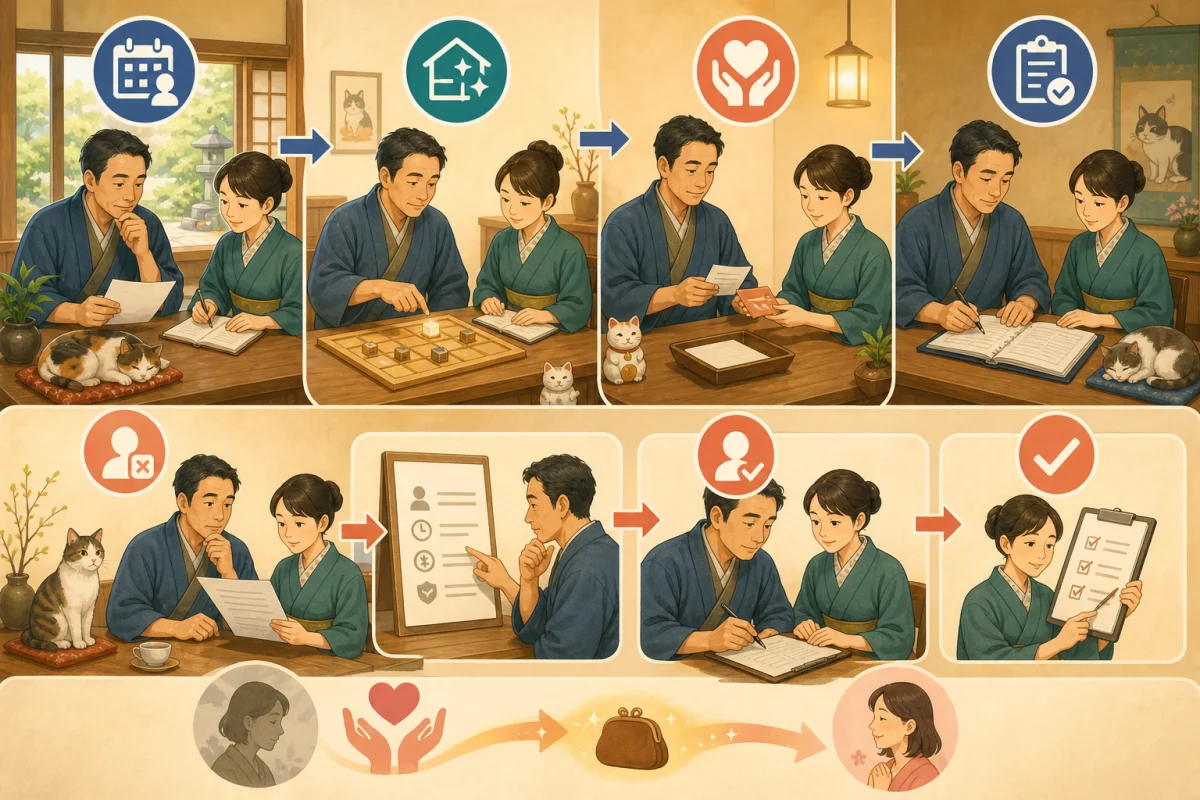
To update safely, perform the following three steps as a series.
Prepare a backup that can be restored → Update only one → Check the public screen and reservation route
In this article, we will explain how to proceed without using commands, focusing on the rental server and the WordPress management screen.
- Environment covered by this article
- Distinguish between the two management screens
- Check your maintenance contract first
- Decide when to update
- Note the update target
- Backup is both file and database
- Read how to restore before updating
- Record the display before updating
- Update in a test environment first if possible
- Update one by one
- Confirmation table after update
- If the update stops while updating
- Don’t make changes if a problem occurs
- PHP changes will be made on another day
- How to think about automatic updates
- Prompt to ask AI
- Summary
- Reference materials
Environment covered by this article
- There is a page exclusively for members and users of the server company.
- Log in to WordPress from
/wp-admin/ - Configure PHP, database, and backup on the server management screen
- I haven’t updated the OS or web server by myself.
If you manage your VPS yourself, this article is more than enough. First, please check Difference between rental server and VPS.
Distinguish between the two management screens
Server company management screen
- Contracts, Domains, SSL, PHP
- Database, file management
- Backup and restore
- Security such as WAF
WordPress admin screen
- WordPress itself, themes, plugins
- Articles, pages, users
Make sure that the two passwords are not the same, and check which management screen you can use to set up two-step authentication. Login protection is explained in BASIC authentication/2-step authentication for WordPress login.
Check your maintenance contract first
If you have a production or maintenance company, check the following:
- Who is in charge of WordPress updates?
- If you operate it at the inn, will it not be subject to maintenance?
- Emergency contact information and reception hours
- Who will do the backup and restore?
- Do you have a reservation form or unique program?
Even if an update notification is displayed, it does not necessarily mean that the host is in charge of the work.
Decide when to update
Avoid times when reservations and inquiries increase: at night, on holidays, during check-in, right after a campaign, or just before the person in charge leaves. Choose a time, such as during the day on weekdays, when you can take about an hour to check the update and contact the server company or creator if a problem occurs.
Note the update target
| Target | Current | After update | Affected features | Results |
|---|---|---|---|---|
| WordPress main body | Entire site | |||
| Themes in use | Display | |||
| Reservation plugin | Inventory/Payment | |||
| Form | Inquiry | |||
| SEO/Cache | Search/Speed |
Open the update details to see the supported WordPress and PHP versions and major changes. For themes whose distribution source is unknown or plugins that have not been updated for a long time, do not force updates and consult the creator.
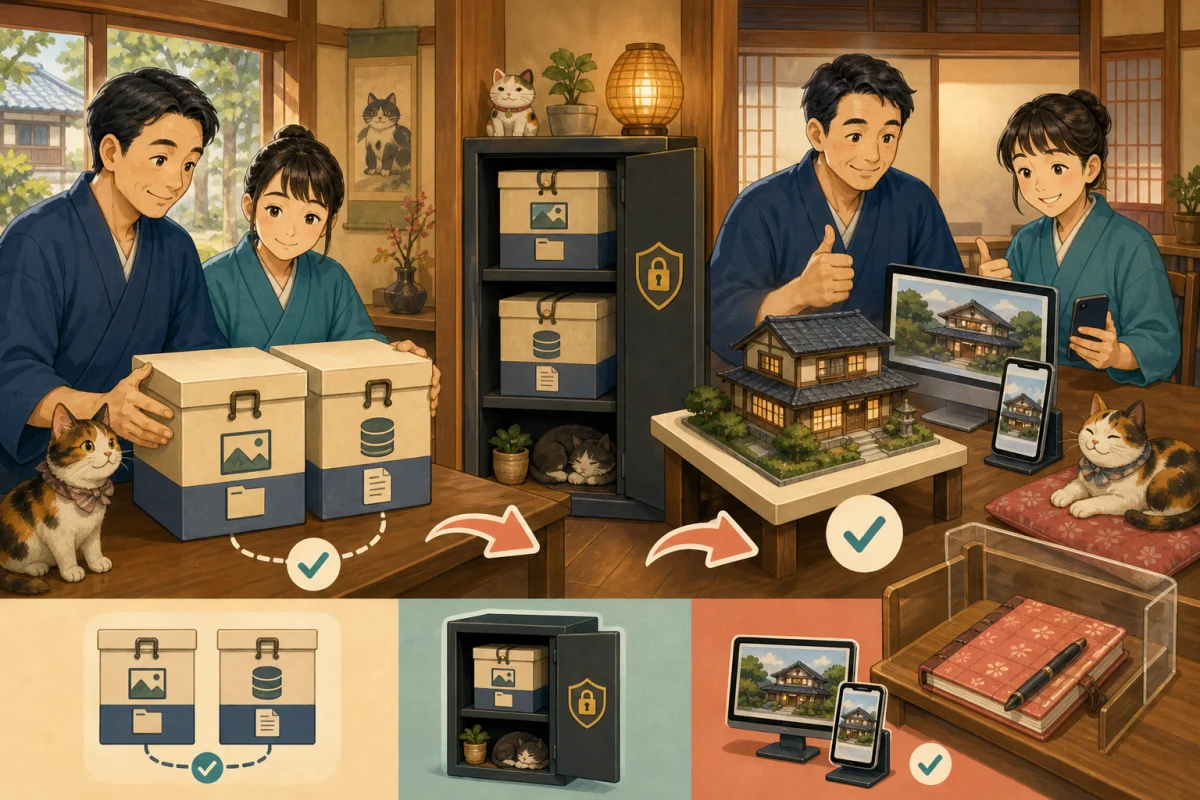
Backup is both file and database
WordPress is broadly divided into two parts.
- Files: Themes, plugins, images, configuration files
- Database: Articles, settings, users, plugin data
You may not be able to recover with just one side.WordPress official update procedure also provides guidance on backing up before updating.
Things to check with automatic backup
- Are both files and databases targeted?
- Last successful date and time
- How many days are left?
- Can I restore it myself or do I need to request a request?
- Restoration fee and time required
- Does it include email and external reservation systems?
Lolipop’s Backup and Restore Manual treats websites and databases as separate restore targets. If multiple CMSs share a single database, be aware that restoring will overwrite everything to the backup point.
Don’t proceed with just the message “Backup available”; instead, confirm that the acquisition was successful just before the update. If possible, store it in a location separate from the production server.
Read how to restore before updating
If you search for the restore screen after a problem occurs, you may be redirected to another site.
- Target domain
- WordPress installation folder
- Database name
- Return date and time
- How long does it take to restore?
- How to accept reservations during restoration Note
.If you restore, articles, inquiries, and reservation information added after the backup may be lost. Check the differences before reverting the database.
Record the display before updating
Open the top page, guest room/rates, cat introduction, access, notifications, reservations, and inquiries on your computer or smartphone, and save the screen and URL.
Also check the following behavior:
- Select the reservation button to open the page with the correct facility/plan.
- You can send inquiries with test information
- You can receive notifications from the hostel and automatic replies.
- You can re-login to the management screen
- No SSL warnings or 404s
Please check with the reservation service how the reservation test will not affect actual inventory or payment.
Update in a test environment first if possible
Staging is where you clone your production site and try out updates. Lolipop’s PHP Settings Manual also provides instructions on how to check the display and operation in staging before making changes to PHP in production.
The test environment does not appear in search results and does not use real guest information or real payments. Do not send test emails to guests and do not unconditionally overwrite the production environment with the contents of the test environment.
Update one by one
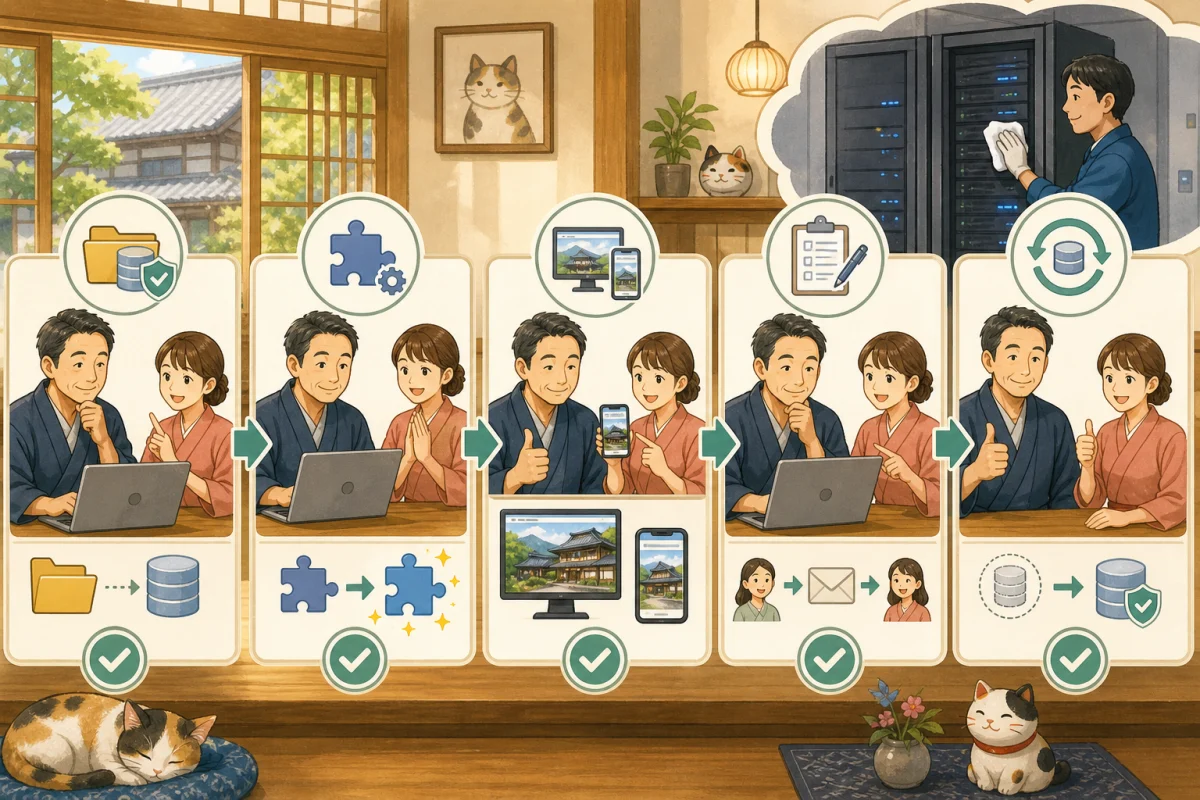
If you select all and update at once, it will be difficult to identify the cause. In the absence of product-specific instructions, the following flow is basic:
- Confirm backup success
- Updated one plugin with a small impact
- Check the management screen and public screen
- Update the following plugins
- Update the theme in use and check the display
- Update WordPress and check the whole thing
- Delete cache and check again
Reservations, payments, memberships, forms, translations, payments, and security have a large impact, so we will deal with them separately.WordPress official plugin documentation also recommends backing up before updating.
Confirmation table after update
Public screen
- [ ] Top, guest room, price, and access are displayed.
- [ ] Images, menus, and internal links are correct.
- [ ] Not broken by PC and smartphone
- [ ] No SSL warnings or 404s
Reservations/Inquiries
- [ ] The reservation button goes to the correct reservation destination
- [ ] Vacancy search screen opens
- [ ] You can send inquiries
- [ ] You will receive a notification from the accommodation and an automatic reply.
- [ ] Map, SNS, OTA links open
Management screen
- [ ] You can log in again
- [ ] You can save articles as drafts.
- [ ] No update errors remain
- [ ] No increase in serious site health issues
If the update stops while updating
Even if the update process appears to have stopped, do not reload the screen or repeat another update operation.
- Record the time of occurrence
- Check the public page in another browser
- View server company failure information
- Save error screen
- Contact the creator or server company
WordPress official documentation also includes support for the .maintenance file if maintenance messages remain. However, if you do not know the location of the host, it is safer to ask support instead of deleting it yourself.
Don’t make changes if a problem occurs
If you keep changing the theme, PHP, and other plugins in an attempt to fix display problems, it will be difficult to identify the cause. It records what was updated, the versions before and after the update, the time of the operation, the URL in question, the device used, the message displayed, and whether the problem can be reproduced even after deleting the cache.
If I can undo just the last change, I will revert it, but if it is difficult, I will stop and consult.
PHP changes will be made on another day
PHP is the foundation that runs WordPress. If you make PHP changes and WordPress updates at the same time, it will be difficult to separate the cause.
Lolipop’s official manual also advises you to check in advance whether the theme and plugins are compatible with the PHP version you are changing to. The PHP versions that can be used and the range that can be restored will vary depending on the server and contract period.
- Record the current PHP
- Update WordPress, theme, and plugins to compatible versions.
- Obtain backup
- PHP changes in test environment
- Check display/reservation/form
- Change production PHP
- Reconfirm after reflection
It may not be possible to revert to the original PHP version after making changes, so read the official manual before pressing the button.
How to think about automatic updates
WordPress official documentation allows you to set automatic updates for each plugin/theme, and the results will be notified by email.
If the provider is clear, does not directly affect reservations/payments, and has automatic backup and monitoring, you can consider automatic renewal. It is safer for reservations, payments, themes in use, page builders, multilingual, members, cash, and original modifications to be checked and updated by humans.
Rather than “all automatic” or “all manual”, we differentiate based on impact and recovery system.
Prompt to ask AI
Update the inn's WordPress on the rental server.
I'm not familiar with IT.Please do not make any changes yet.

Make a plan to just read first and then check.
- Server company and contract plan
- Current version of WordPress, PHP, themes and plugins in use
- Update candidates and affected features
- How to back up files and databases
- How to restore and what data may be lost during restoration
- How to test reservations, inquiries, and emails

Please explain the server management screen and the WordPress management screen separately.
Do not display or save passwords, customer information, or API keys.
Please do not perform any updates, PHP changes, or restores until I approve them.
Do not pass the management screen password to AI via chat. The host operates the screen or provides a secure execution path.
Summary
- Check the scope of responsibility of the maintenance contract
- Allow files and databases to be returned
- Record update target and pre-update screen
- Check the display/reservation/email every time there is an update
- Test PHP changes another day
- Don’t make changes if a problem occurs
- Check reservations/inquiries after backup before restoring
The general idea can also be found in Introduction to updating WordPress for the host.How to actually restore from a backup is explained in detail in Backup and restore before WordPress update.
Reference materials
- WordPress.org: WordPress Update
- WordPress.org: Plugin management
- WordPress.org: Automatic update of plugins and themes
- Lollipop: Backup restore
- Lollipop: PHP settings
Note: Screen name, backup, restore fees, PHP, and staging vary depending on the server company and plan. Please check your contractor’s latest manual before starting work.