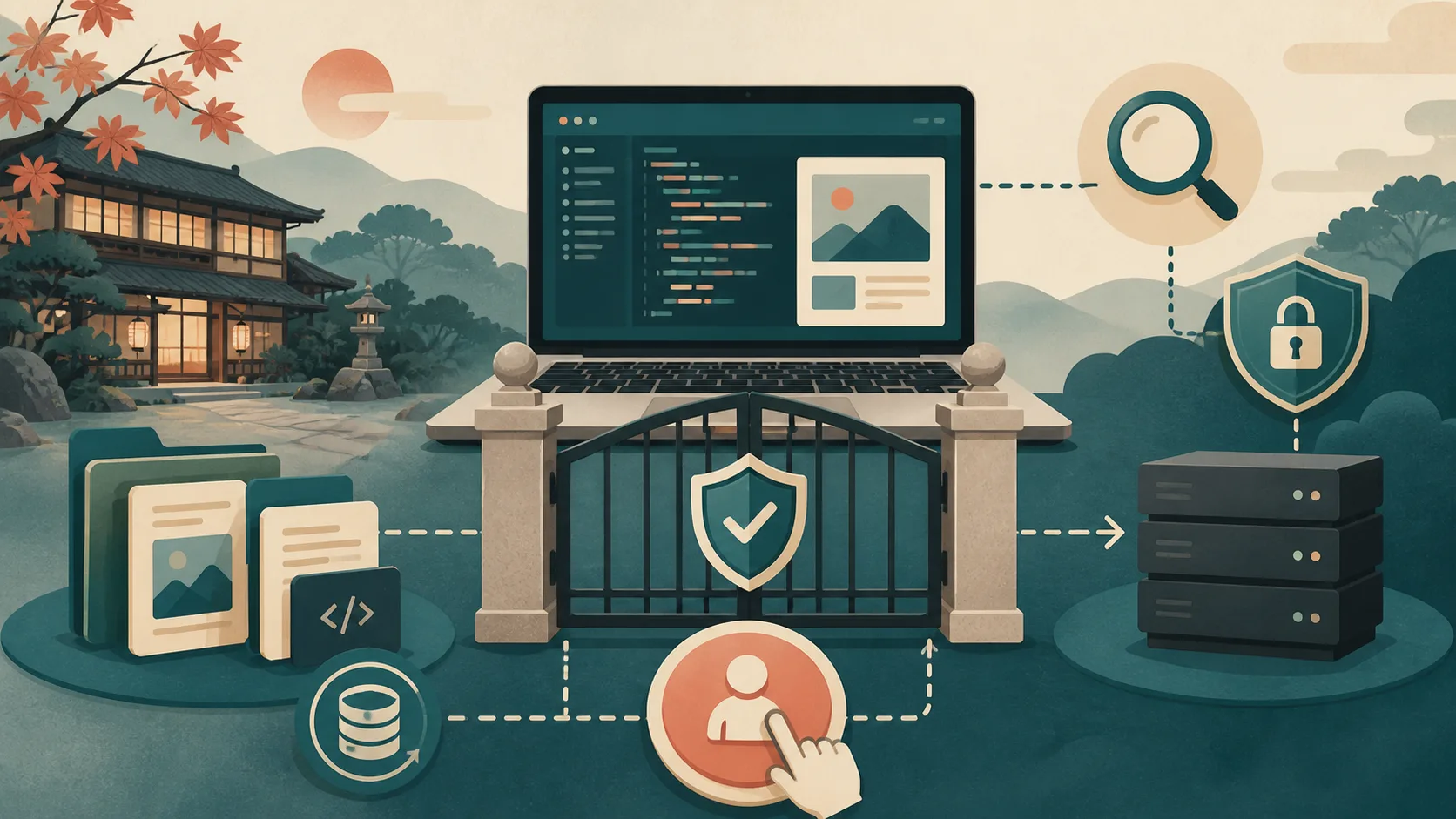
On the WordPress management screen, you can create articles, check plugins, manage users, etc. from your browser.WP-CLI is the official tool for similar WordPress management from the command line.
Since it is easy to record operations as steps, it can also be used when having AI such as Codex or Claude Code help with WordPress management. However, WP-CLI can not only check but also update and delete. Before connecting to AI, it is essential to define boundaries of authority and authorization.
What you can do with WP-CLI
WP-CLI has commands that handle WordPress itself, posts, media, categories, users, themes, plugins, settings, database, etc.
Examples of uses include:
- Check WordPress version
- Get a list of published articles and drafts
- Check categories and tags
- Check active themes and plugins
- Register article as draft
- Set eye catch and post meta
- Perform updates and cache deletion
Just because it’s on the list doesn’t mean you have to allow all commands to the AI.
Differences from the management screen
The management screen is suitable for people to operate items one by one while looking at the screen. WP-CLI is suitable for tasks such as repeating the same confirmation, recording a series of operations, and processing multiple items in a fixed procedure.
On the other hand, since commands can be executed without looking at button positions or warning screens, mistakenly specifying the target can cause the impact to spread. It is not that “commands are safer,” but rather that the advantage is narrowing the scope of execution and making it easier to verify the results.
Check if the environment is available
Whether you can use WP-CLI depends on the contracted server and management method.
- Rental server: Check if SSH and WP-CLI are provided in the official manual
- Managed WordPress: Check for proprietary CLI or connection restrictions
- VPS/Cloud: Administrators manage WP-CLI implementation, execution user, and WordPress location
- Outsourcing to a production company: Confirm the scope of the contract and the person in charge of the work first
Please do not ask AI to install or set up a server unless you are sure it can be used. First, check with your contractor or maintenance person.
Only read at first
For the first review, use only commands that do not change the state of WordPress. The following is a general example of WP-CLI, and is not a step-by-step guide to paste into your production environment.
wp core version
wp plugin list
wp theme list
wp post list --post_type=post --post_status=publish
wp term list category
Before execution, the administrator will verify that the target site, running user, and WordPress location are correct. Because the results may include user information, settings, and private articles, we do not share the output directly.
First request example to AI
Please check if you can use WP-CLI with this WordPress.

This request is for read-only investigation only.
Do not change posts, settings, themes, plugins, users, or databases.

Things to check:
- WordPress version
- Active theme
- Plugin status
- Number of published articles and number of drafts
- Category composition

Show the commands you plan to execute before running them.
Do not display confidential or personal information in your answer.
In addition to “Check with WP-CLI,” you can also specify what should not be changed, confirmation items, and reporting methods.
Commands that are not allowed to AI as is
WP-CLI’s official command list includes highly privileged functions such as PHP code execution, interactive shell, configuration display, database operations, search and replace, update, and delete.
At least the following types are not freely allowed to the AI in the initial state.
- something that executes arbitrary PHP code
- something that opens an interactive shell
- those that directly manipulate the database
- Can display setting values and authentication information
- Deleting posts, users, media, and sites
- Updates WordPress itself, themes, and plugins
- Search and replace the entire site
In addition to the sentence “Do not use dangerous commands”, how to limit the commands allowed on the execution path side is explained in detail in How to create a restricted wrapper that allows AI to safely use WP-CLI.
Start by creating a draft
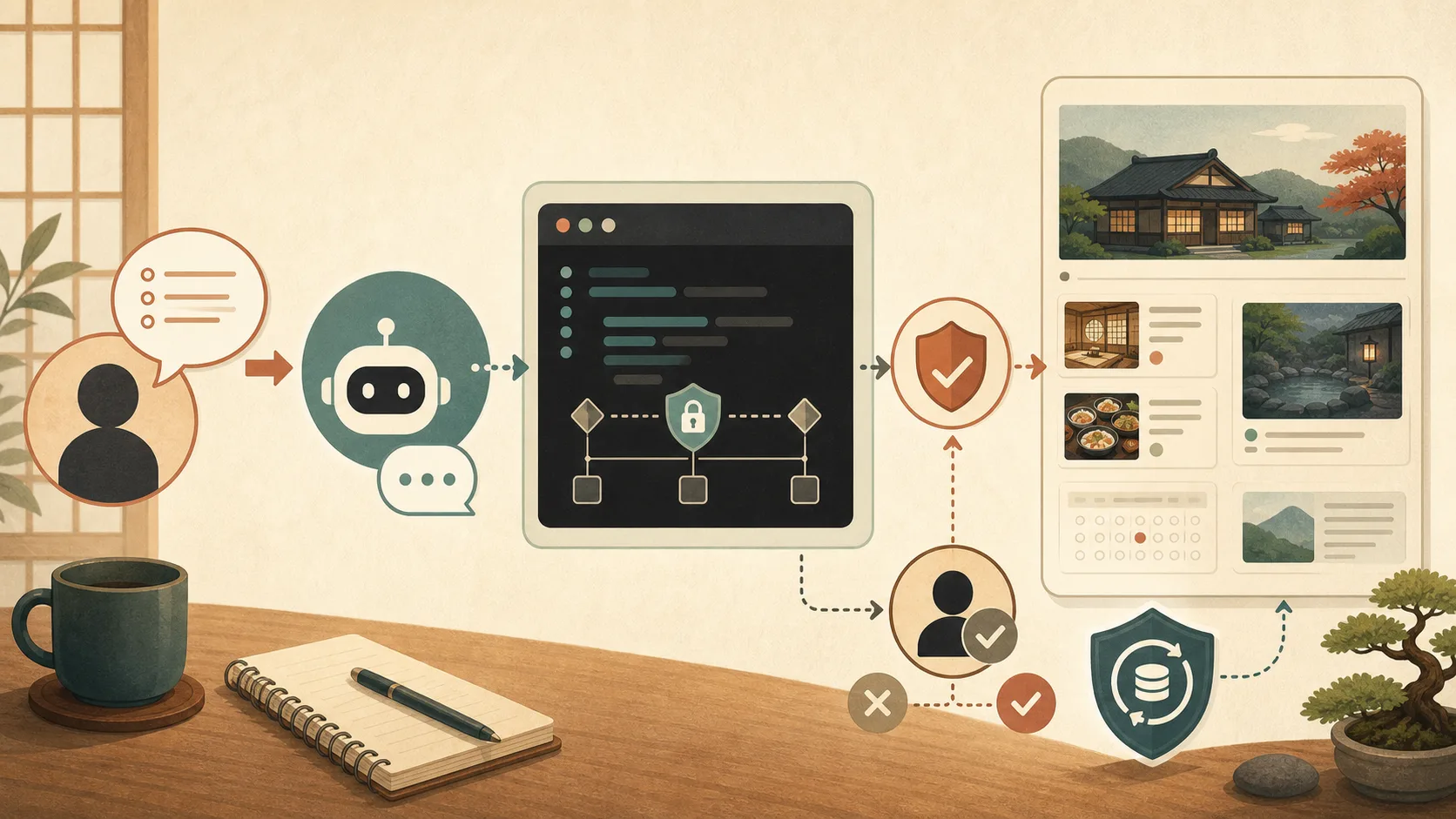
After checking the reading, try creating a draft instead of publishing it live. The AI registers the title and text, and a person checks the content, categories, images, and links on the management screen before publishing.
Based on the read-only checks, please register only 1 article as a draft.
Please do not publish, update or delete existing posts.
Please indicate the title, slug, category, description, and command you are using before running.
After registering, please report the post ID and confirmation URL.
We do not register a large number of articles from the beginning or automate the publishing process. Try creating, reviewing, modifying, deleting, or restoring one item, then expand your scope.
Things needed for safe operation
- Backup with recovery method confirmed
- Test environment or draft process separate from production
- Minimum WordPress server privileges required
- Mechanism to limit allowed commands
- Approval boundary that stops at live publication, update, and deletion
- Record of executed commands and results
- Confirm pages, reservations, and inquiries after publication
Simply writing rules to AGENTS.md and CLAUDE.md does not technically limit permissions. Please also check Safety rules for managing WordPress with AI.
Summary
WP-CLI turns WordPress management into recordable steps, giving you an entry point where AI can help you with research and updates. On the other hand, it also has the ability to make changes to WordPress as a whole.
First, check the usage environment and the person in charge, then proceed with read-only commands, one draft, and human confirmation. Before connecting to production, check the permissions, backup, and test environment in Preparation before passing WP-CLI to AI.After preparation, limit the items to be checked using Introduction to WP-CLI without changes, and technically narrow down the commands that can be executed using Restricted wrapper article.
Reference materials
- WordPress Developer Resources: WP-CLI command list
- WordPress Developer Resources:wp help
- WordPress Developer Resources:wp shell
Note: WP-CLI availability, installation method, permissions, and backup vary depending on the environment. Please give priority to the guidance of the contracted party and management personnel.