When the display breaks down after updating WordPress, it can be worrying because you don’t know whether the theme is bad, a plugin has conflicted, or the old screen is just left.
At this time, if I keep changing the settings that come to mind, the original bug and the changes added later get mixed together. The same applies when relying on AI. Instead of asking it to fix things from the start, I use it as an investigator to record the reproduction conditions and eliminate candidate causes one by one.
In this article, I will explain the order in which you can safely separate themes, plugins, and caches so that even the host who is not familiar with IT can ask Codex or Claude Code to investigate.
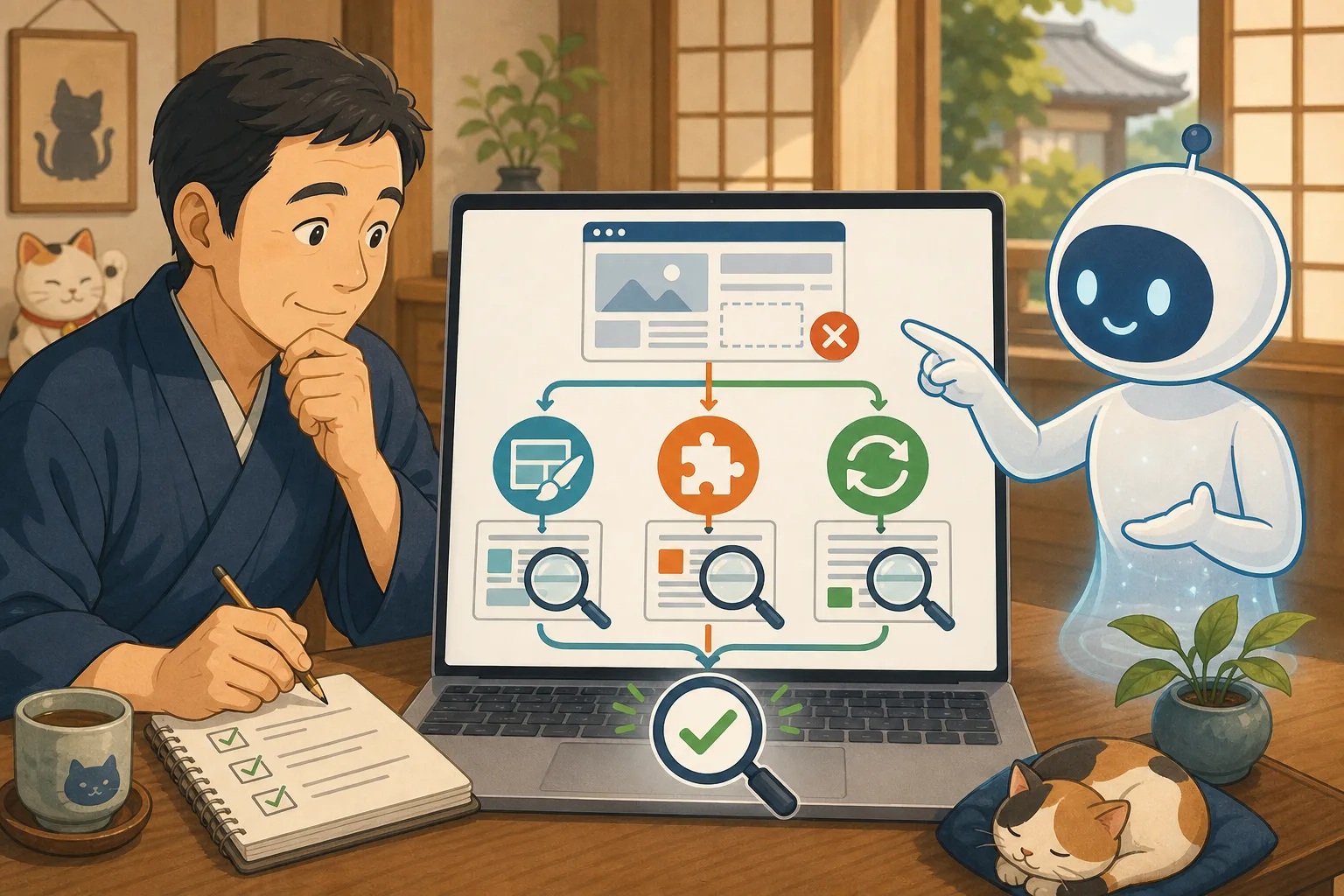
- Conclusion: Don’t fix it first, divide it into four boxes
- First stop additional changes
- Create a “symptom memo” to pass to AI
- Step 1: Check if it’s cached
- Step 2: Check if it’s a theme issue
- Step 3: Check for plugin conflicts
- Stage 4: Check only the necessary parts of the error log
- Survey prompts that can be copied and pasted into AI
- How to judge AI’s answers
- The final fix will be based on the cause.
- Host confirmation checklist
- Official information referenced
- Summary
Conclusion: Don’t fix it first, divide it into four boxes
When you find a display problem, divide the possible causes into the following four categories.
| Possible causes | Common appearance | First check |
|---|---|---|
| Cache | Appears differently depending on administrator, general customer, and device | Secret screen, separate device, cache layer |
| Theme | Menus, margins, images, and headings have changed extensively | Parent/child themes, original CSS, update history |
| Plugin | One function such as form, reserved parts, slider, etc. is broken | Valid list, update time, conflict check in validation environment |
| Execution environment | White, 500 error, stops midway through processing | PHP/WordPress logs, versions, capacity |
AI will not make a decision without any evidence. Make a table of “possibilities”, “confirmation methods”, and “confirmation results”, and have them narrow down their candidates as the results come out.
First stop additional changes
Stop the next operation until you know the cause.
- Continue updating other plugins and themes
- Add some CSS that seems to be fixed
- Stop all plugins in production
- Clear cache many times and change settings
- Restore without checking how to restore the backup
- Paste the entire error log as is to AI
If reservations or inquiries have stopped, we will inform you of alternative contact methods before conducting an investigation. Please inform the maintenance staff of the currently available reservation routes, such as telephone or OTA.
Create a “symptom memo” to pass to AI
AI can only give generalizations without seeing the actual screen or change history. Note the following items:
- URL where the problem occurred
- Last date and time when it was normal and date and time when it was discovered.
- Last updated WordPress themes and plugins
- Does it happen on a computer or a smartphone?
- Does it occur while logged in or logged out?
- Does it only display, or does the reservation/inquiry operation also fail?
- Error number and short message on screen
- Screenshots before and after update
We will not pass on images or logs that include your name, email address, reservation number, payment information, cookies, or authentication information. Cover only the necessary parts and check again before handing it over to the AI.
Step 1: Check if it’s cached
WordPress official documentation also cites browsers, servers, and cache plugins as reasons why changes are not reflected. Cache is a mechanism that temporarily saves previous screens to speed up display.
Check the same URL in the following order:
- Reload your regular browser
- Open in incognito window
- Open on another device where you are not logged in
- Open from another line instead of the inn’s Wi-Fi
- Check with your maintenance staff about the cache function you are using.
Differences such as “only my computer is outdated”, “only the administrator’s computer is normal”, and “only some regions are outdated” are reasons to suspect a cache. However, cache deletion differs depending on the browser, WordPress plugin, rental server, CDN, etc. Don’t let the AI guess and delete everything, check the services you’re using and the official instructions.
Even if you clear the cache and the problem temporarily returns to normal, it does not necessarily mean that the cause has been resolved. Check again later to see if the broken screen has been saved again.
Step 2: Check if it’s a theme issue
A problem with the theme is that the appearance common to multiple pages can easily change.
- Header and menu position
- Overall font size and margins
- Featured image ratio
- Sidebar and footer
- Horizontal protrusion of smartphone display
- Theme-specific buttons and decorations
Let the AI organize the currently used parent theme and child theme, versions before and after updates, and the storage location of your own CSS just by reading.If you edited the parent theme directly, your changes may have disappeared with the update.
Avoid temporarily changing the theme and checking it because the entire display will change during the live production. Switch to the standard theme in the verification environment and check if the same symptoms disappear. If it disappears, the theme side is most likely, but not only the theme itself, but also the combination of the theme and specific plugins remain.
Step 3: Check for plugin conflicts
If only one feature is broken, check the plugin that provides that feature or related plugins.
- I can’t send only the inquiry form
- Only the reservation button does not respond
- Only slide photos are not displayed
- Only maps and videos cannot be loaded.
- Only the SEO description no longer appears
First, let the AI list the valid plug-in names, current versions, and update dates. This reading alone will not change the display of the site. Next, match your update history to the time your symptoms started.
If you want to stop and check the plugin, as a general rule, use the Verification Environment.Don’t stop all at once, record your targets and check them one by one. Plugins related to reservations, payments, security, backups, and caching should not be stopped in production without understanding the implications.
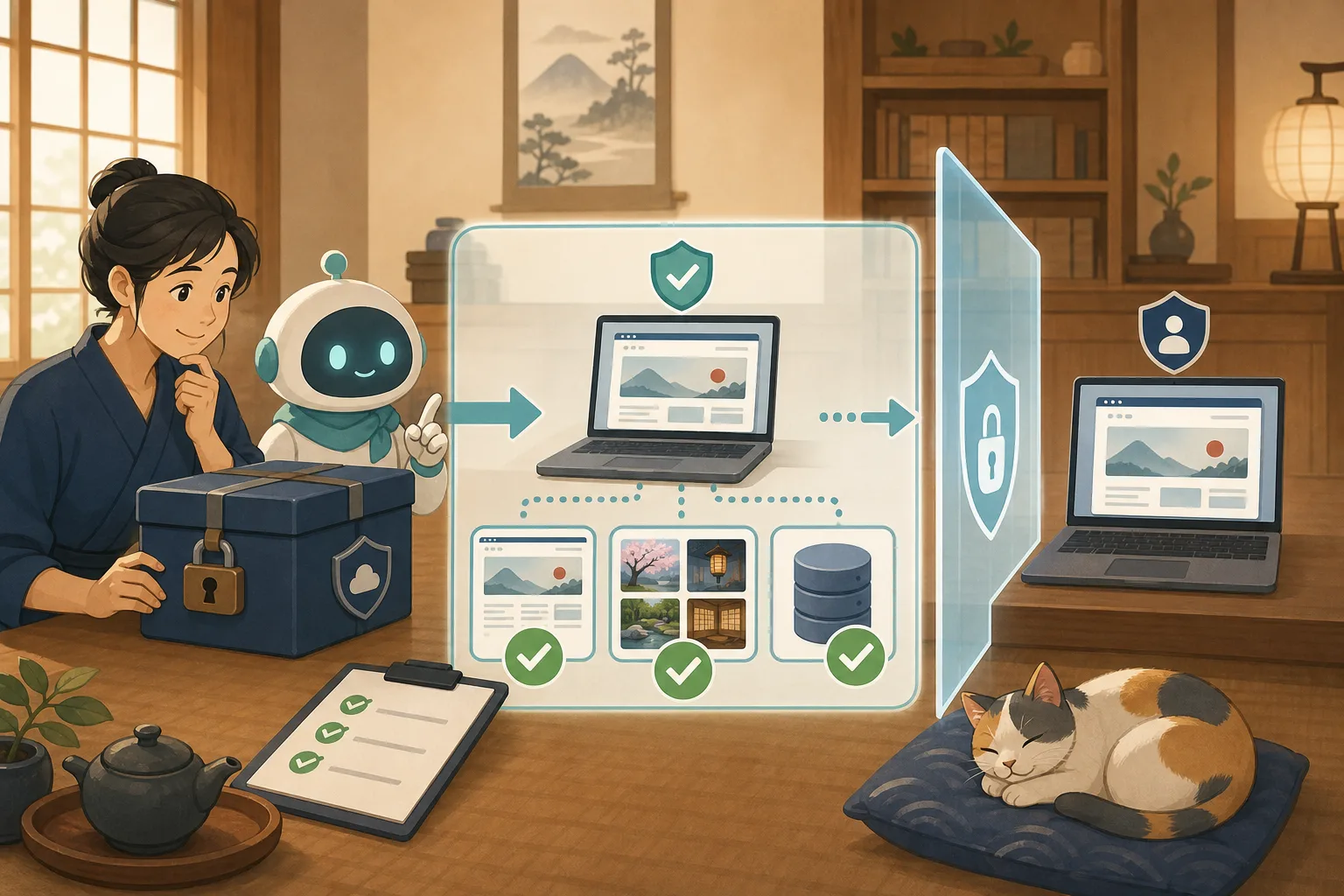
WordPress.org’s “Health Check & Troubleshooting” has a troubleshooting mode where you can try disabling plugins or using the standard theme with just an administrator investigation session. A feature of this feature is that it can be checked without affecting general visitors, but compatibility with the site configuration and other administrator operations should be checked in advance and implemented after backup. Adding a plugin is itself a change, so AI cannot add it without permission.
Stage 4: Check only the necessary parts of the error log
Blank screens, 500 errors, freezes when saving, etc. cannot be detected just by comparing the appearance. Check around the time when the problem occurred from the PHP or WordPress error log.
Official WordPress debugging materials explain WP_DEBUG and WP_DEBUG_LOG, but it is not recommended to use them regularly on a production site. If you wish to modify the configuration file, please contact the rental server support or maintenance personnel.
Observe the following when passing logs to AI.
- Extract only the data before and after the occurrence time
- Hide internal server path and user name
- Hide IP address, cookies, and email address
- If the same error occurs repeatedly, only the number of cases is reported.
- Do not publish logs on the site
- Revert temporary debug settings after investigation
Even if the error includes a plugin folder name, it does not necessarily mean that the plugin is the cause. It is also possible that it was called from another process and the abnormality surfaced there.
Survey prompts that can be copied and pasted into AI
First, organize by reading only
The display has collapsed after updating WordPress. Don't fix it yet.

Symptoms:
[Problem URL, device, date and time of occurrence, last update, error details]

Initially read-only,
1. Reproduction conditions
2. Possible causes of cache, themes, plugins, and execution environment
3. A secure way to check each candidate
4. Items that can be checked without changing the actual production. Please make a table of
.

Do not make assumptions about causes without evidence.
Please do not stop, update, delete, change settings, delete cache, or restart.
If you find personal information or authentication information, please do not display the content, just report the location.
Check one by one in the verification environment
I would like to isolate the cause of the display corruption using a verification environment that is a replica of the actual production environment.
Please do not change the actual version.

Check the update history and active themes/plugins, and install them in descending order of impact.
Make a plan to verify each item one by one.
For each step, include a record of what was changed, the expected result, how to undo it, and a confirmation URL.

Please do not stop/switch/update until I approve the plan.
Please leave reservations, payments, inquiries, and email sending as items for people to confirm.
Compare amendments based on survey results
As a result of the investigation, we have found [confirmed facts].
Do not make any changes to production yet.

The proposed amendments are divided into three categories: “Proposals that directly address the cause,” “Temporary avoidance,” and “Restoration.”
Compare the scope of impact, likelihood of recurrence, reversal methods, and required confirmations.
Please do not suggest baseless CSS additions or unauthorized deletion of plugins.
How to judge AI’s answers
A safe answer has the following characteristics:
- Separating research and changes
- Check only one item at a time
- Distinguish between production and validation environments
- There is a record before the change and a way to restore it.
- People check reservations, payments, and forms
- Write “unconfirmed” when you don’t know
On the other hand, suggestions such as “stop all plugins for now,” “add forced specifications to CSS,” “hide errors,” and “revert to the previous version without backing up” will not be implemented.
The final fix will be based on the cause.
| Confirmed causes | Countermeasures |
|---|---|
| Old cache | Check and update target layers and official procedures |
| Direct editing of the parent theme has disappeared | Move child themes, etc. to management that is difficult to erase with updates |
| Plugin conflicts | Compare official fixes, configuration changes, and alternatives |
| Incompatibility with PHP, etc. | Verify compatible versions and decide update order with maintenance staff |
| Cause undetermined | Stop additional changes and consider restoring from normal backup |
Adding CSS to restore only the appearance may hide the cause and cause the problem to reoccur in the next update. We will separately record permanent measures and temporary workarounds to continue accepting reservations.
Host confirmation checklist
- [ ] Recorded the problem URL, device, and time of occurrence.
- [ ] Recorded the last update
- [ ] Stopped additional updates and ad hoc corrections.
- [ ] Confirmed on the secret screen and on another device
- [ ] Separate reading investigation and modification work
- [ ] I tried switching themes and plugins in a verification environment.
- [ ] Removed personal information and authentication information from logs
- [ ] Changed only one item at a time
- [ ] A person confirmed the reservation, inquiry, price, and smartphone display.
- [ ] The cause, correction, and confirmation results were recorded in the operation record.
If you want to automatically preserve the appearance before and after the update, you can also use How to compare screens with Playwright.For information on how to proceed safely with the entire update, please refer to What to do when the display is corrupted during a WordPress update, and for backup, please refer to Backup and restore before WordPress update.
Official information referenced
- WordPress official: FAQ when changes are not reflected
- Learn WordPress: Troubleshooting plugin/theme conflicts
- WordPress Support Handbook: Survey using Health Check
- WordPress official: Debugging function
Summary
In investigating the cause of the display malfunction, it is more important to reproduce the same symptoms and eliminate candidates one by one than to change something quickly.
AI can quickly organize and compare change history, classify logs, and create verification plans. The host is responsible for maintaining the published booking path, approving changes, and verifying rates, reservations, and inquiries. This division of roles reduces the risk of making multiple corrections without knowing the cause.